
When setting up a Raspberry Pi to run Venus OS, the GUI is not available on the local HDMI port – it is running headless by default. However, in order to connect to a Wireless network, we need to access that UI.
As mentioned in the above link, there is a workaround to it: renaming (or removing) the /etc/venus/headless file. This can be done by connecting via the serial port to the PI using the Adafruit USB to TTL serial cable. There is a very thorough article on how to connect to the port.
In short, pin 8 (GPIO14, TX) is white; pin 10 (GPIO15, RX) is green and pin 6 can be used as ground (black) and DO NOT USE the red wire. See here for the actual Pin layout. We can then use Putty to make a connection to the Pi (at 115200bps).
So far, so good. However, when trying to rename the headless file the following error message appears: mv: can't rename 'headless': Read-only file system
As pointed out in Cannot change headless – Read only filesystem on Rasp4 for Venus OS large two options exist:
- Make the file system read/write via
/opt/victronenergy/swupdate-scripts/remount-rw.sh - Enable
superuseraccess (unfortunately, this requires GUI access – chicken-egg-problem here)
But instead of making the filesystem read-write until the next firmware update, I would rather only temporarily remount via mount -o remount,rw /.
And after that, renaming/removing the headless file succeeds.
Following the next reboot, the file system is then mounted read-only again and the GUI appears on the local HDMI port.
Now we can configure WLAN settings and everything else (such as superuser access) without the need for a wired network.
And in case you are in the need of a very small keyboard / display combination, you can use
- a Rii X1 mini wireless keyboard
- and a Atomos Connect 4K or one of its successors and your favourite camera application to see the Pi’s local screen (works great on Android as well)
Connecting to Wi-Fi with via Bluetooth and Victron Connect
In case you only want to connect to Wi-Fi and do not happen to have a serial cable, but you want to use the Raspberry Pi’s bluetooth connection, you can use Victron Connect to configure wireless network settings.
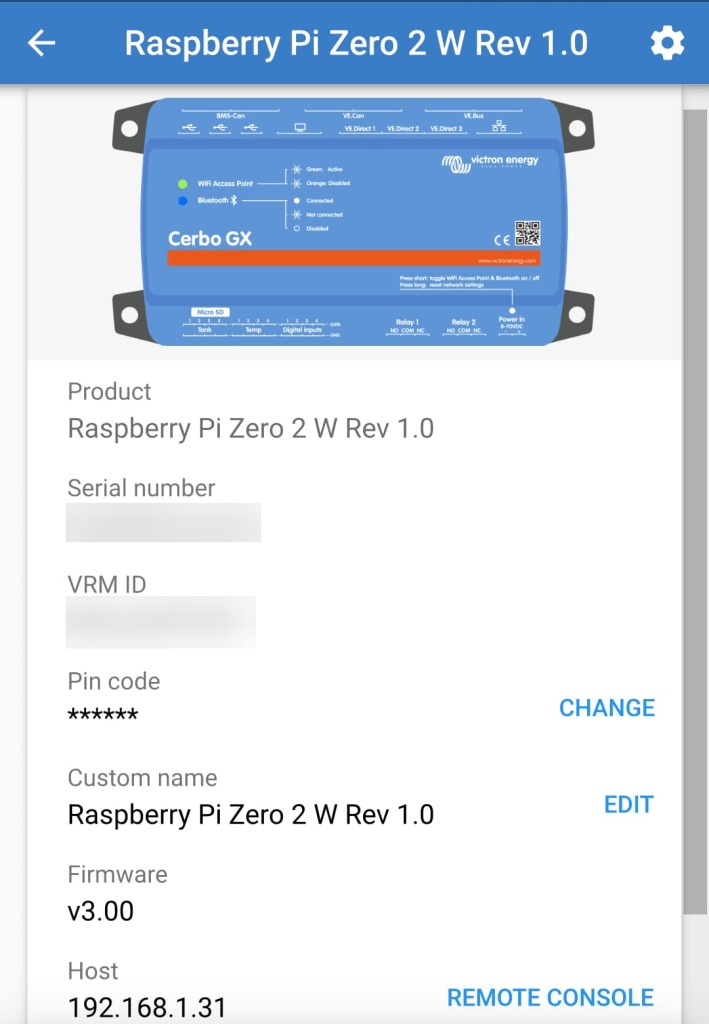
For this you start up Victron Connect on an Android (or Apple i device, Windows will nork work for that) and discover the Raspberry you want to connect. When pairing with the Pi use 000000 as the pin code.
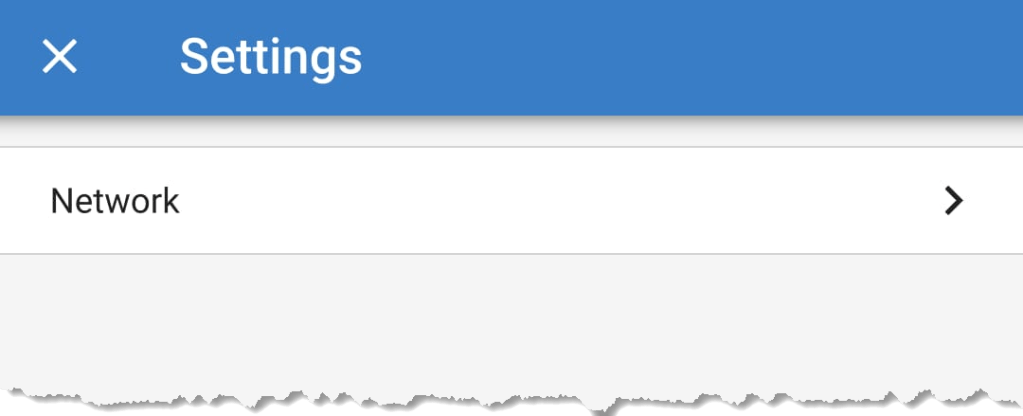
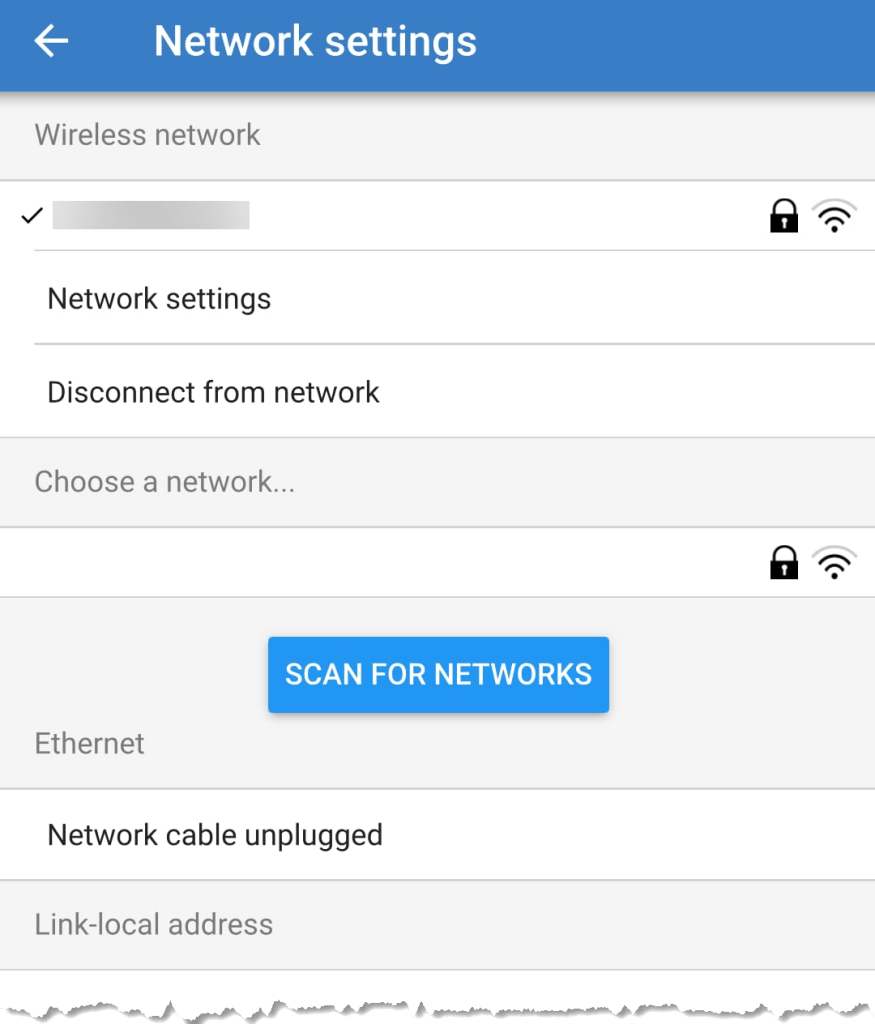
After that you will find the gear icon in the upper right corner. From there you can select Network settings and connect to your WLAN.
Below you find some screenshots.
 Our Journey to Scotland