A look into Siglent SDS2000X Plus Software Options

In this article, we have a look into the software options of the Siglent SDS2000X Plus digitial oscilloscope series.

The SDS2000X Plus series has been around for quite some time and – while still on sale – has been superseded by the Siglent SDS2000X HD series. It consists of a 2-channel entry model and three 4-channel models with varying bandwidth (100MHz, 200MHz, 350MHz). Interestingly the hardware in these models is exactly the same (with the one exception of the 2-channel model only having a single acquisition unit). For more details have a look at this video where the device is taken apart:

EEVblog #1309 – Siglent SDS2000X Plus Scope Teardown+Hack

As mentioned in the video, there seems to be the possibilty to upgrade the bandwidth of the oscilloscope to up to 500MHz and additionally unlock a few other options. According to the manufacturer’s web site the value of the software options can add up quite considerably to a multiple of the actual oscilloscope:
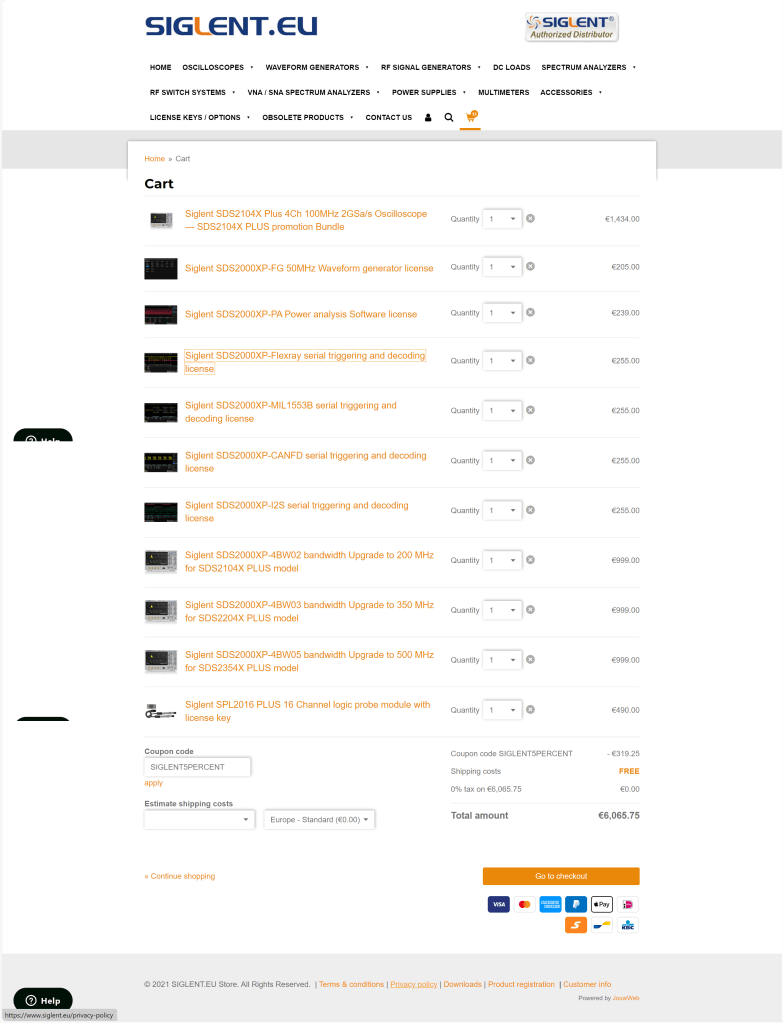
Siglent SDS2000X Plus software options

The author of the video, which partially seems to divide its audience by its tonal pitch, remains cryptic about on how to actually do this but only refers to a post on this forum. So the question remains, is this really doable? and if yes, how does it work?

Note1: In case someone is wondering if it is allowed to generate software keys, an option might be to contact the manufacturer to get clarification on this subject.

Note2: I bought my scope with a couple of software options. So, no need for me to generate keys, I would not have otherwise.
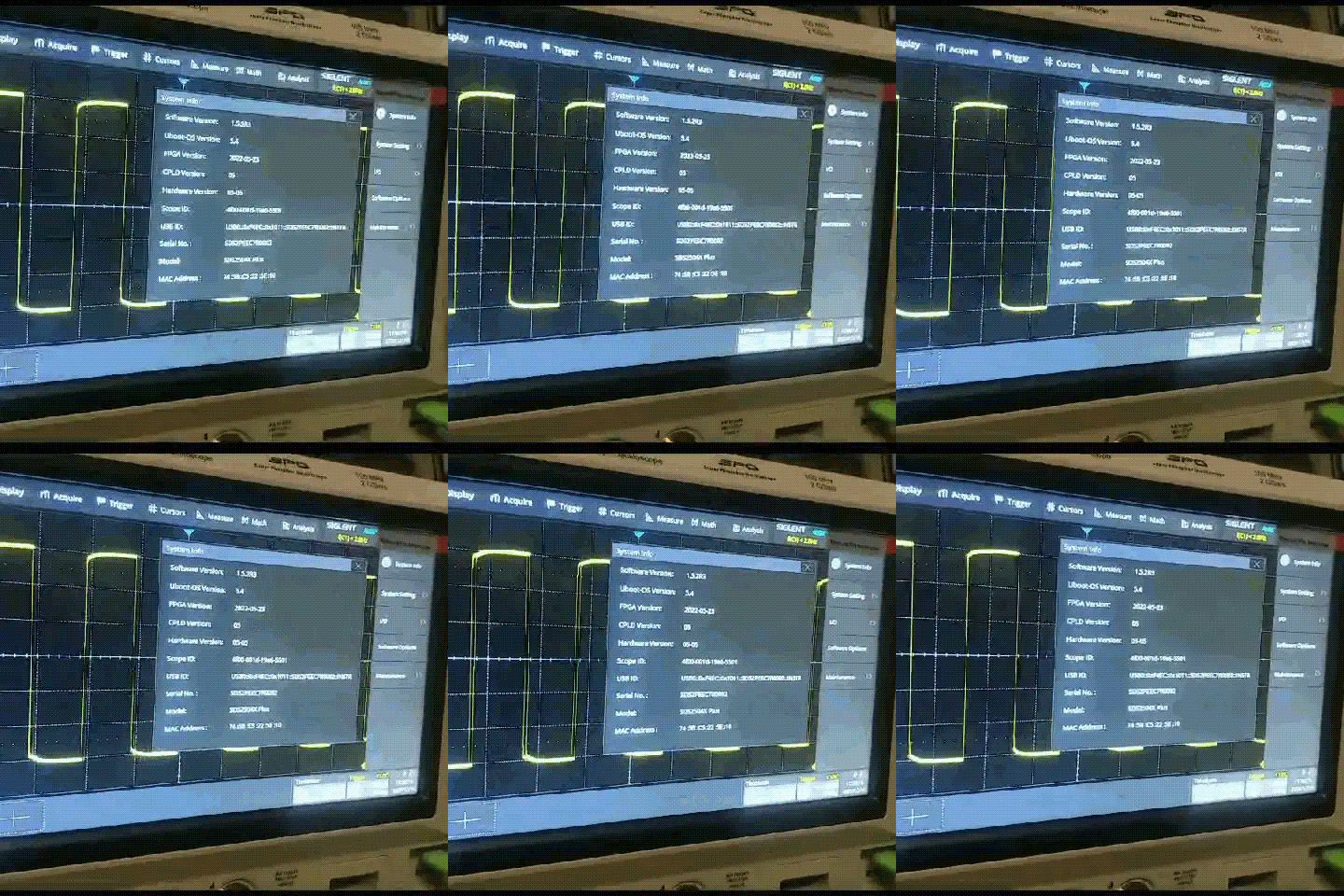
A Siglent SDS2104X in action

The questions

According to the forum there seems to exist confusion about the following areas:

  1. What is the SCOPEID?
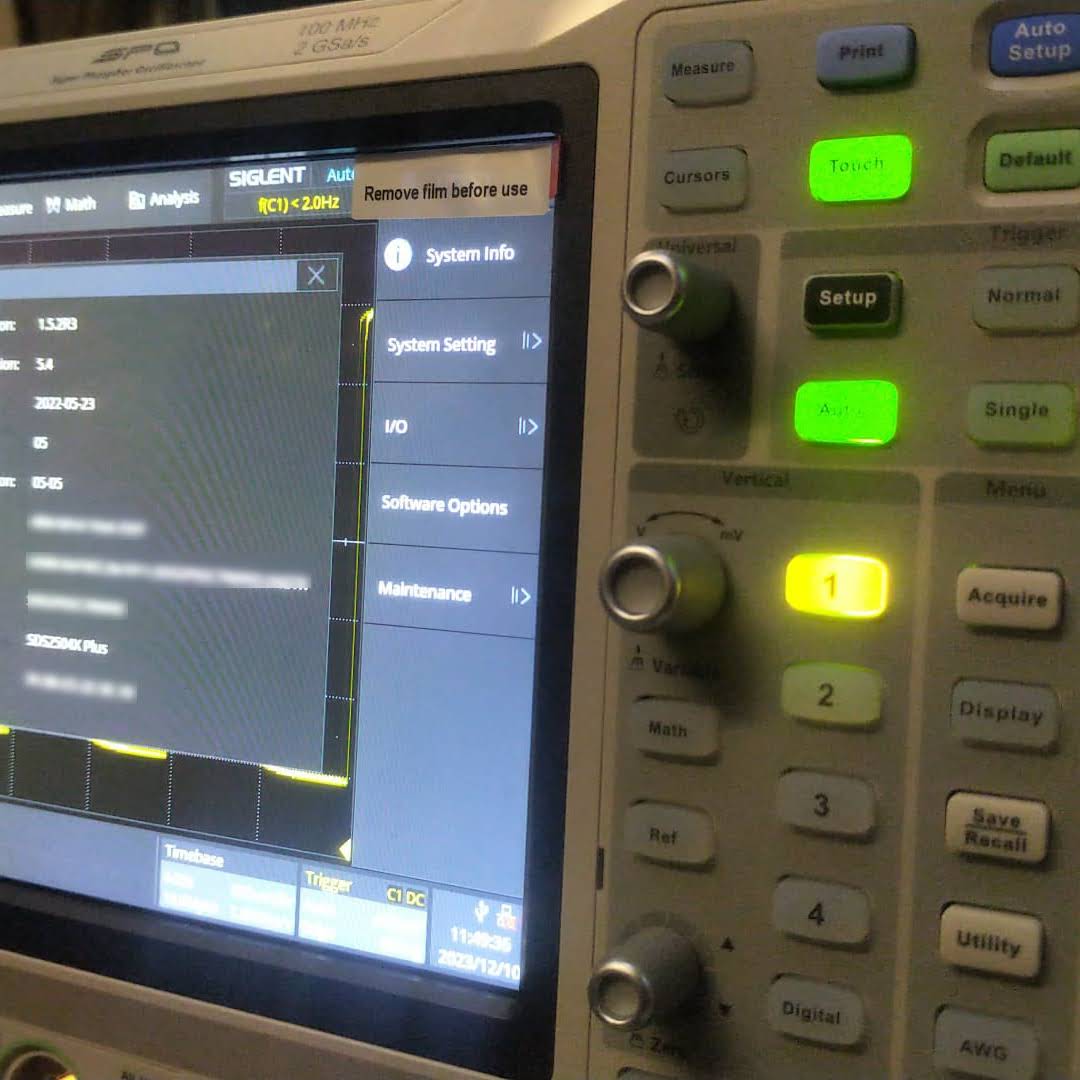
    The SCOPEID is the 16-digit value you find when you open Utility, System Info and strip of the dash characters from “Scope ID“.
  2. What is the Model?
    According to this video the model just stays as it is. So no replacing of the pre-defined value at all (regardless of the actual model we have).
  3. Which firmware versions work with it? And do I have to downgrade first?
    As it we can read from the Siglent SDS2000X Plus Release Notes, beginning with v1.3.9R10 no downgrade can be done to any version older than that version. In the previously mentioned video we see that exactly that version is used for the demonstration.
  4. Which keys (based on bwopt) work for which option?
    The script generates keys that do not necessarily match 1:1 to the options in the oscilloscope. But a look and search into the user manual reveals that the abbreviations in the script correspond to the product numbers. So for example, MSO is the abbreviation for the 16-channel logic analyser option. However, some keys generated by the script do not seem to have any corresponding sotware option at all (such as MAX or WIFI).
  5. How to generate keys for options originally not included in the script (eg. MANC, SENT)?
    There are options present, especially the MANCH and SENT option, that are not being generted by the script at all. All one would have to do, is to add MANC (mind the missing ‘h‘) and SENT to the array of bwopt and have to re-run the script.
  6. Is there any order in applying the software option keys? Or anything else to consider?
    Everytime a new key is entered, immediate feedback on the screen shows if a key was accepted as valid. A reboot seems to be required to activate the associated function. However, it is not problem at all to insert multiple keys or software options without rebooting.
    A special note about the bandwidth option: as one can see from the web site, it is not possible to buy a 500MHz license upgrade for a SDS2104X. Only the 200MHz option is available. After appliying an upgrade the actual model number of the oscilloscope changes as well and a new bandwidth option appears for that new model. So essentially, an upgrade on a SDS2104X to a 500MHz version (SDS2504X) must be done via these intermediate steps: 200MHz, 350MHz, 500MHz. In the end, only the label printed onto the oscilloscope shows its true origin.
    An upgrade to a more recent version of the firmware afterwards is possible but optional.
    Note1: after upgrading to 500MHz there is no more bandwidth option thus reducing the number of license options by one. I mention this, in case you thought something went missing.
    Note2: the standard probes only work up to 200MHz and also the high-end probe goes only up to 350MHz. So, in order to be really able to use the full 500MHz one probably has to get hold of an active probe.

The script

The script itself is pretty basic. The magic MD5 hashkey is being mangled with the Model and the SCOPEID. And then for each bwopt a new key is generated. Interestingly, the gen function never makes use of its parameter x and opt is implicitly referenced from the global scope.
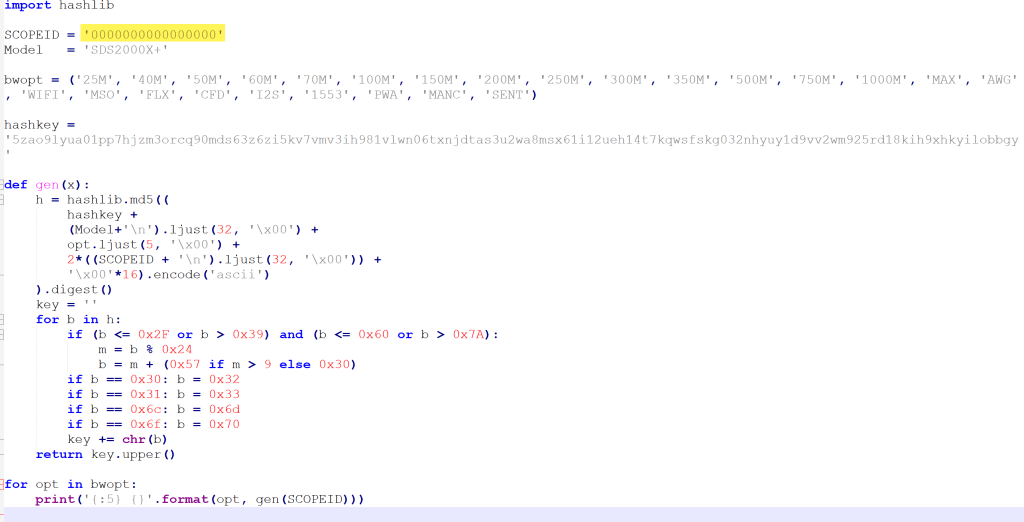
Code from replit.com linked by miyagi

The conclusion

Essentially, this has been a story about weak license keys. Though it might seem perfectly doable to generate keys for software options without reyling on the manufacturer, this is not something that can be generally recommended.
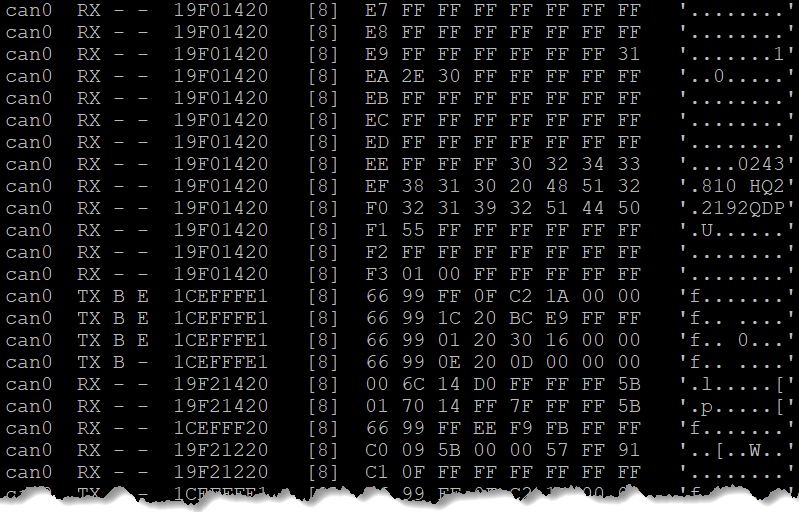
Reverse engineering the BYD Battery-Box Premium LVS CAN Protocol for Victron Venus OS

On my goal, to build a battery with a Venus OS compatible CAN interface I decided to have a look at he BYD CAN protocol – for several reasons:

  1. It is supported with Victron and Venus OS.
  2. I happen to have a BYD Battery-Box Premium LVS dual battery system.
  3. I heard mixed information about the Pylontech CAN protocol implementation.

So, I got myself a Kvaeser Memorator Light, in order to be able to sniff the CAN traffic between a Venus OS and the BYD BMS. For whatever reason, I did not get it to work, so I ended up with candump – which proved to be more that sufficient for what I needed.

Note: of course, before I started reverse engineering the protocol, I made some effort to find resources and someone who might have already done that – but no luck. However, there were some fragments regarding HVS systems. But they did not seem to be compatible with the LVS implementation.

If you are interested in the result, you can head right here. Otherwise, stay with me and I explain my approach to correlate the identifiers and data pieces.

  1. First, I just started candump to check the general message flow and to see some recurring patterns (working/normal operation, UseCase A).
  2. I then verified that the communication (which runs at 500kb/s) only consists of 11bit identifiers and no FD frames.
  3. I then identified the several message ids based on sender (TX, Venus OS) and receiver (RX, BYD).
  4. I then monitored the message flow, when I disconnected the BYB BMS temporarily (UseCase B).
  5. And then I monitored the message flow, when there was no BYD BMS present at start and then powered it on (UseCase C).
  6. Have alarms and warnings being sent by the BYD BMS (UseCase D). (see note below)

Things to consider:

  1. What are the units of the data being sent (e.g. temperature came in Kelvin/K)?
  2. What is the byte ordering (e.g for WORDs expect the low byte first and then the high byte)?
  3. Is there a scaling on the data being sent (e.g. 1/10mV)?
  4. Is information distributed over different messages? Or does one message have a special meaning in correlation to another message? (e.g. cell voltage and temperature)

For most of the parts, I *knew* what data to expect or to look for. I just looked at the BMS device inside the Venus OS and looked for data that matched the information shown on the GUI.

In the end, I identified most of the messages. For alarms and events, I will verify them once I have a working prototype on my ESP32 by simulating and sending them to Venus OS. [Edit: Alarms and Warnings are now identified and described. Events seem to be not supported. With 17 frames/messages I can now setup a complete BYD battery simulation towards a Venus OS.]

Here is a Summary: BYD Battery-Box Premium LVS CAN Protocol. There you find also some image of Venus OS with the correspnding information as shown on the GUI.

Hope you find this useful.

Initial setup of a Venus OS on a Raspberry Pi without a wired network connection

When setting up a Raspberry Pi to run Venus OS, the GUI is not available on the local HDMI port – it is running headless by default. However, in order to connect to a Wireless network, we need to access that UI.

As mentioned in the above link, there is a workaround to it: renaming (or removing) the /etc/venus/headless file. This can be done by connecting via the serial port to the PI using the Adafruit USB to TTL serial cable. There is a very thorough article on how to connect to the port.

In short, pin 8 (GPIO14, TX) is white; pin 10 (GPIO15, RX) is green and pin 6 can be used as ground (black) and DO NOT USE the red wire. See here for the actual Pin layout. We can then use Putty to make a connection to the Pi (at 115200bps).

So far, so good. However, when trying to rename the headless file the following error message appears: mv: can't rename 'headless': Read-only file system

As pointed out in Cannot change headless – Read only filesystem on Rasp4 for Venus OS large two options exist:

  1. Make the file system read/write via /opt/victronenergy/swupdate-scripts/remount-rw.sh
  2. Enable superuser access (unfortunately, this requires GUI access – chicken-egg-problem here)

But instead of making the filesystem read-write until the next firmware update, I would rather only temporarily remount via mount -o remount,rw /.

And after that, renaming/removing the headless file succeeds.

Following the next reboot, the file system is then mounted read-only again and the GUI appears on the local HDMI port.

Now we can configure WLAN settings and everything else (such as superuser access) without the need for a wired network.

And in case you are in the need of a very small keyboard / display combination, you can use

Connecting to Wi-Fi with via Bluetooth and Victron Connect

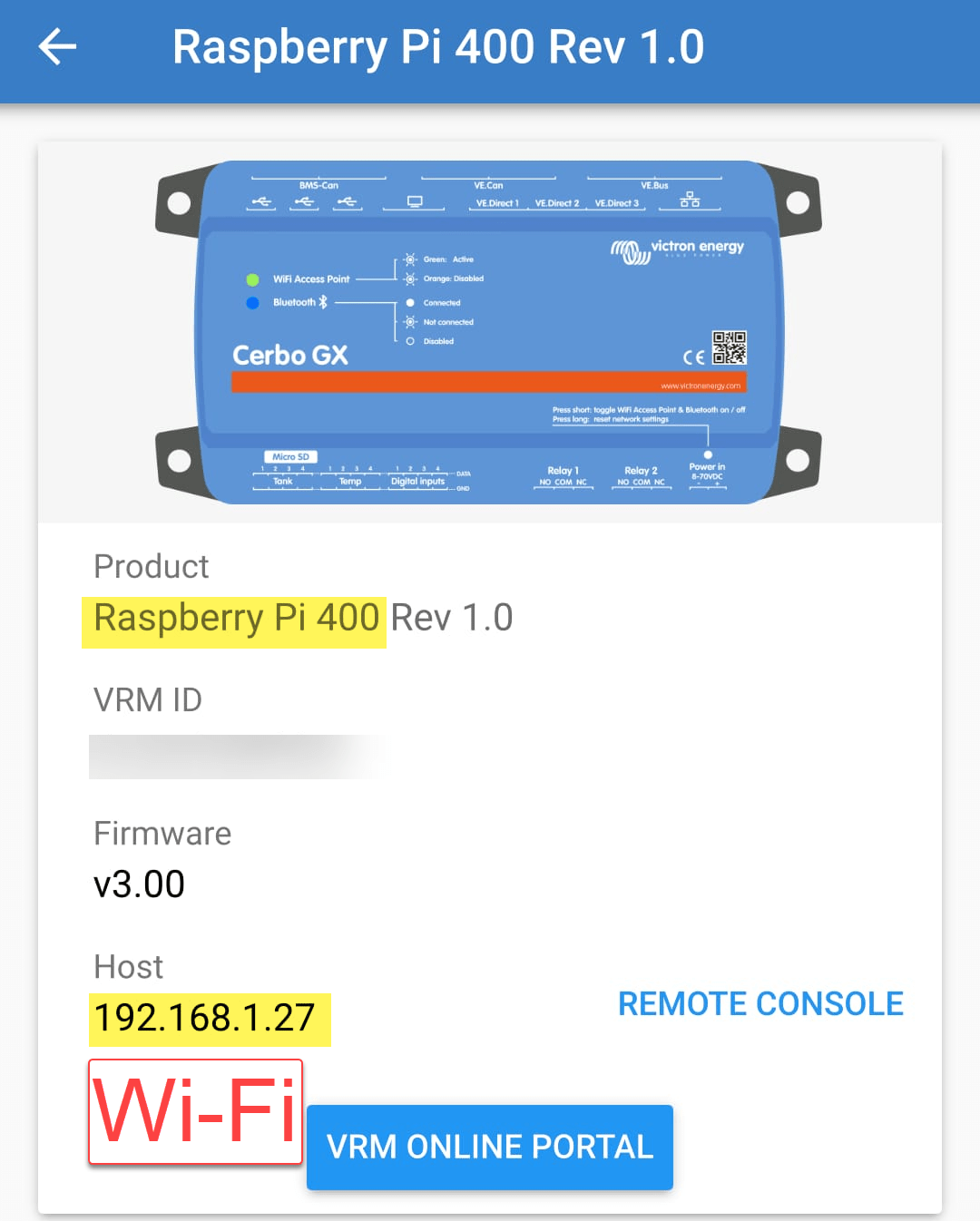
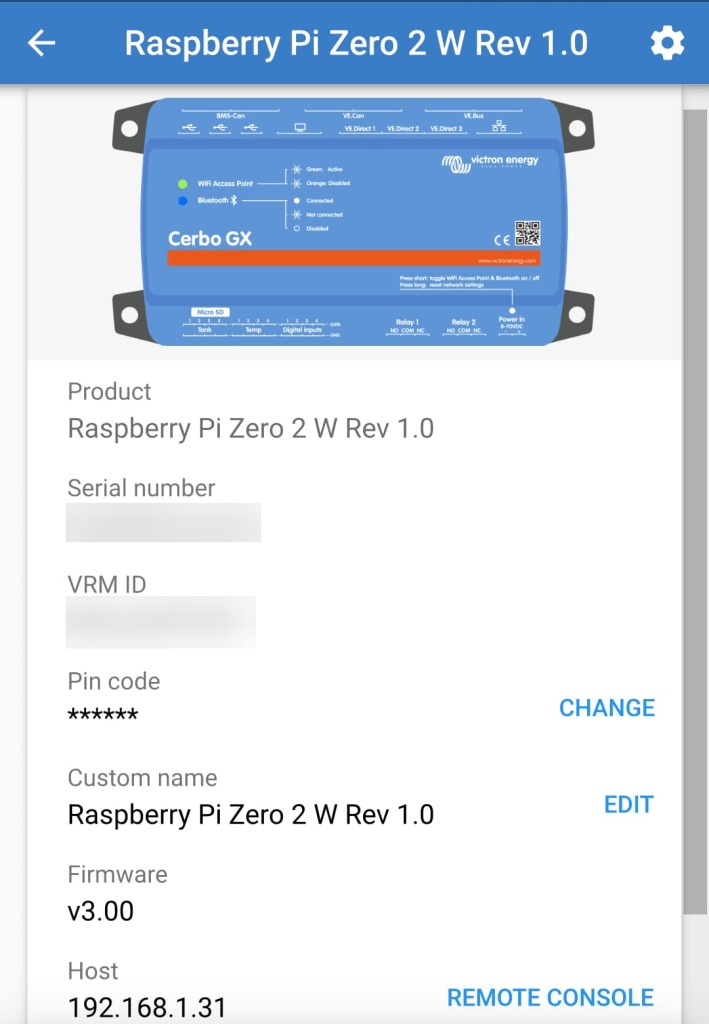
In case you only want to connect to Wi-Fi and do not happen to have a serial cable, but you want to use the Raspberry Pi’s bluetooth connection, you can use Victron Connect to configure wireless network settings.

For this you start up Victron Connect on an Android (or Apple i device, Windows will nork work for that) and discover the Raspberry you want to connect. When pairing with the Pi use 000000 as the pin code.

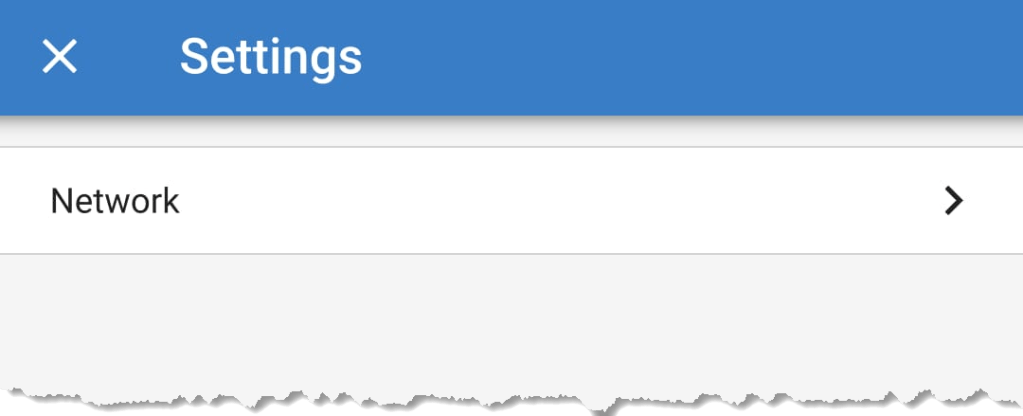
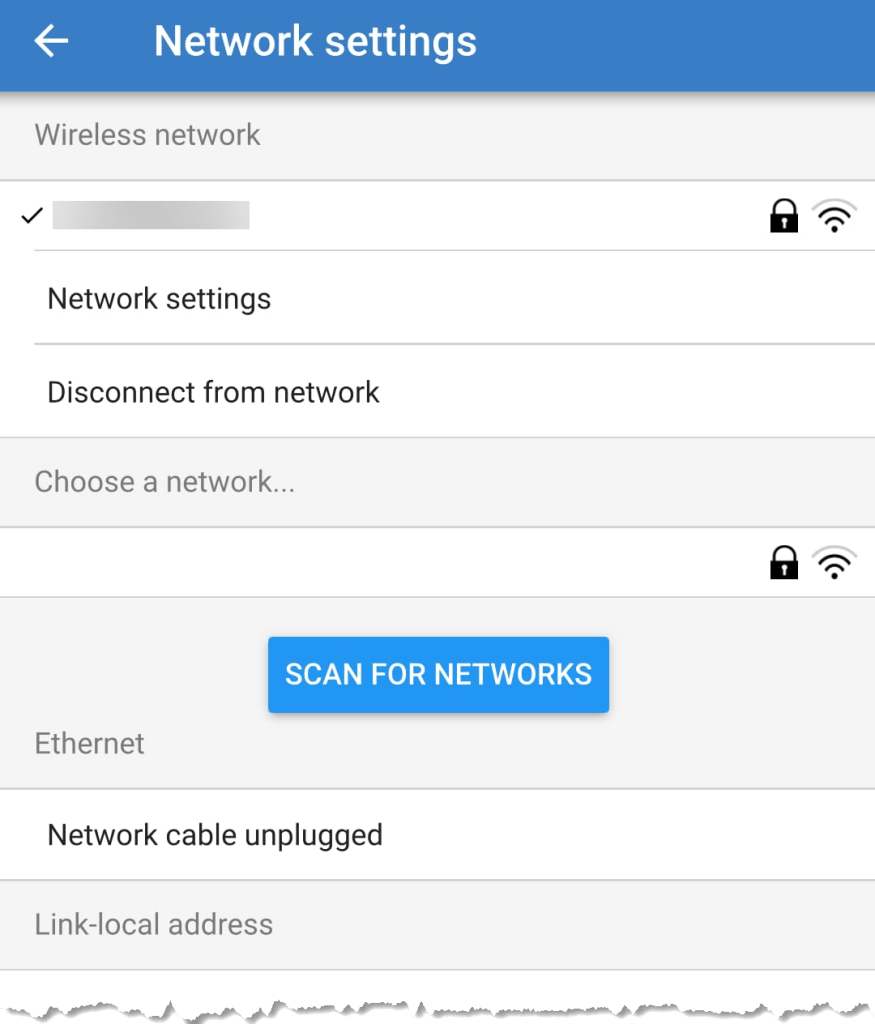
After that you will find the gear icon in the upper right corner. From there you can select Network settings and connect to your WLAN.

Below you find some screenshots.

Bluetooth connection to Venus OS via Victron Connect
Configure Network settings
Connecting to a WLAN

Enabling WiFi on a Raspberry Pi 400 with Venus OS

When we run Venus OS without any modifications on a Raspberry Pi 400 no WiFi is detected – though the Pi 400 certainly has WiFi onboard.

As it seems, I am not the first one to notice that. bipedalprimate presented a solution by copying a bunch of Raspbian /lib/firmware files to the Venus OS. But as it turns out, things can be achieved much simpler.

It seems, that the driver on the 400 is differs from the chipset of a _regular_ Pi 4: it is the brcmfmac43456.

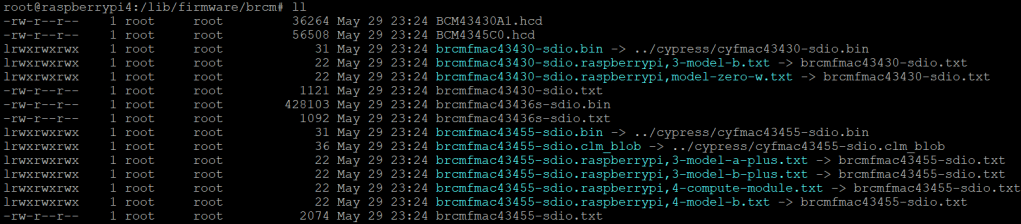
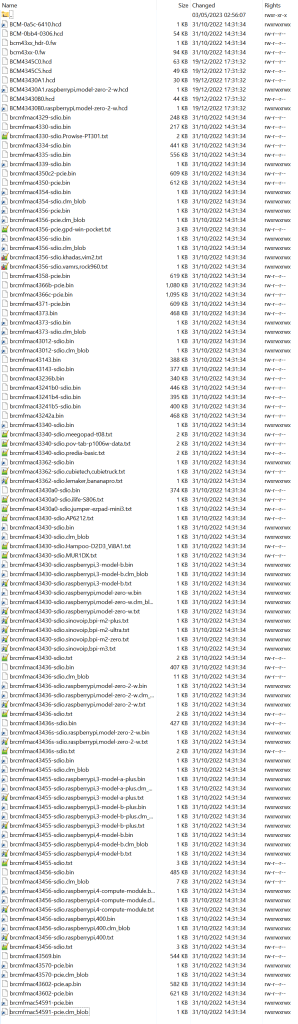
When looking at the /lib/firmware/brcm folder of a Venus OS these drivers are missing:

Venus OS v3.00 contents of /lib/firmware/brcm

On a Raspberry Pi 400 things look different:

Raspberry Pi 400 Raspbian 6.1.21 contents of /lib/firmware/brcm

As it seems, only a few files are required for a Raspberry Pi 400 and only a few belong to the brcmfmac43456. Most of the files are in fact links to other files (and some are in the cypress directory).

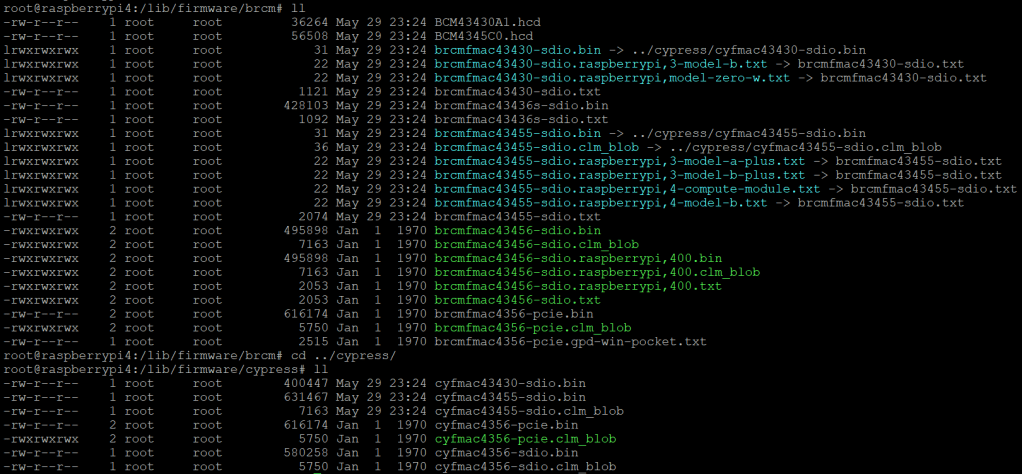
So, I did the following: I copied the brcm and cypress directories to a USB stick and inserted it into the Pi 400. From there I copied the driver files to the respective directories inside /lib/firmware, added some links and adjusted the permissions. Below you see the commands I used.

Note1: I am a novice when it comes to Linux, so pls do not expect any sophisticated shell scripting.

Note2: by default the root file system is _read-only_. Therefore I re-mounted it as read-write (so, maybe our changes will not survive a firmware update).

Note3: my USB stick was mounted as /run/media/sda1. Yours might be different.

mount -o remount,rw /
cd /lib/firmware/cypress
cp /run/media/sda1/cypress/cyfmac4356* .
chmod 644 cyfmac4356*
cd /lib/firmware/brcm
cp /run/media/sda1/brcm/brcmfmac4356-pcie.gpd-win-pocket.txt .
chmod 644 brcmfmac4356-pcie.gpd-win-pocket.txt
ln ../cypress/cyfmac4356-pcie.bin brcmfmac4356-pcie.bin
chmod 777 brcmfmac4356-pcie.bin
ln ../cypress/cyfmac4356-pcie.clm_blob brcmfmac4356-pcie.clm_blob
chmod 777 brcmfmac4356-pcie.clm_blob
ln ../cypress/cyfmac4356-sdio.bin brcmfmac4356-sdio.bin
chmod 777 brcmfmac4356-sdio.bin
ln ../cypress/cyfmac4356-sdio.clm_blob brcmfmac4356-sdio.clm_blob
chmod 777 brcmfmac4356-sdio.clm_blob
ln brcmfmac4356-sdio.AP6356S.txt brcmfmac4356-sdio.khadas,vim2.txt
chmod 777 brcmfmac4356-sdio.khadas,vim2.txt
ln brcmfmac4356-sdio.AP6356S.txt brcmfmac4356-sdio.vamrs,rock960.txt
chmod 777 brcmfmac4356-sdio.vamrs,rock960.txt
cp /run/media/sda1/brcm/brcmfmac43456-sdio.bin .
chmod 644 brcmfmac43456-sdio.bin
cp /run/media/sda1/brcm/brcmfmac43456-sdio.clm_blob .
chmod 644 brcmfmac43456-sdio.clm_blob
cp /run/media/sda1/brcm/brcmfmac43456-sdio.txt .
chmod 644 brcmfmac43456-sdio.txt
ln brcmfmac43456-sdio.bin brcmfmac43456-sdio.raspberrypi,400.bin
chmod 777 brcmfmac43456-sdio.raspberrypi,400.bin
ln brcmfmac43456-sdio.clm_blob brcmfmac43456-sdio.raspberrypi,400.clm_blob
chmod 777 brcmfmac43456-sdio.raspberrypi,400.clm_blob
ln brcmfmac43456-sdio.txt brcmfmac43456-sdio.raspberrypi,400.txt
chmod 777 brcmfmac43456-sdio.raspberrypi,400.txt
mount -o remount,ro /
Commands necessary to enable WLAN support on Raspberry Pi 400 for Venus OS v3.00

Two brcm-links are giving errors, but this can be ignored. The links on the Raspbian are not working either.

After copying the files both directories looked like this:

Venus OS v3.00 firmware brcm and cypress folder after adding the driver files

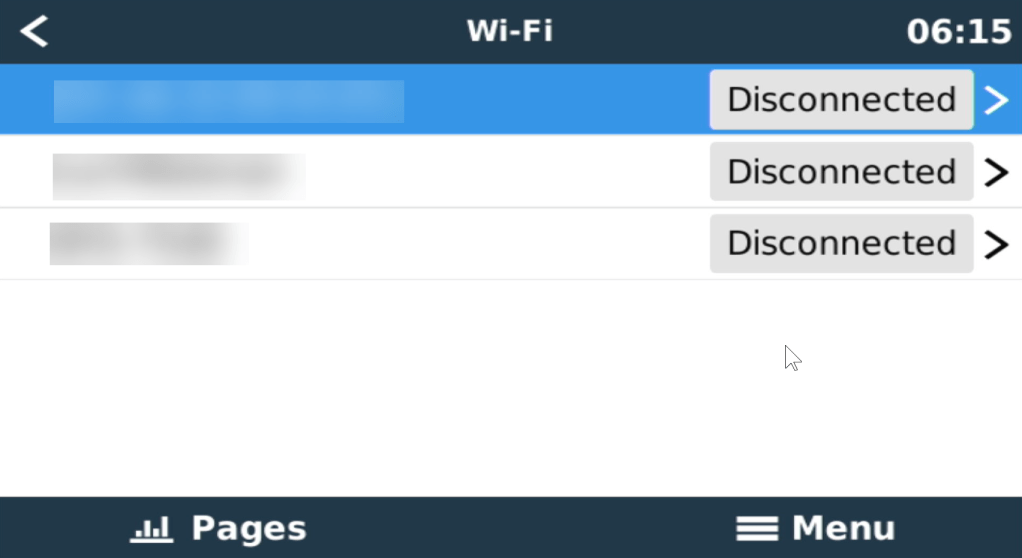
After a reboot I could browse and connect to my SSID via Settings, Wi-Fi:

Wi-Fi networks visible after a reboot
Established connection to a Wi-Fi network

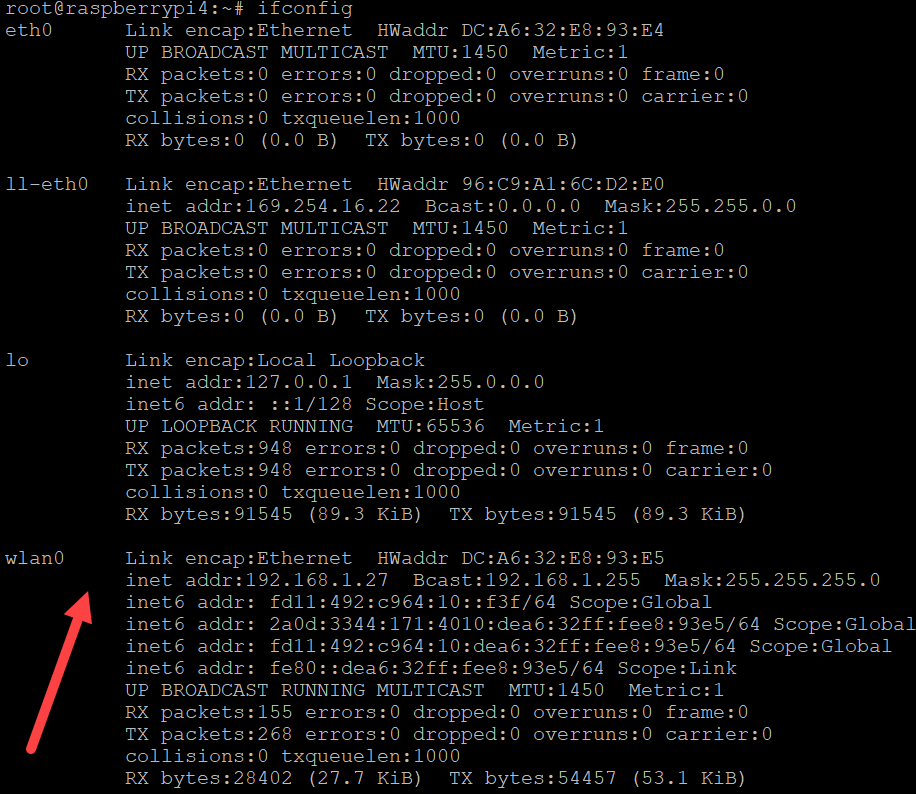
And from the serial console, ifconfig also showed our new interface:

Venus OS recognising the Raspberry Pi 400 WiFi interface

Now, the Raspberry Pi 400 can be used like any other Pi with Venus OS.

Thanks again to bipedalprimate for pointing me in the right direction!

Using a Raspberry PI 2 Model B 1GB as a Victron GX device running Venus OS v3.00

Along with some others I am waiting for Raspberry PIs to become available again (while *not* supporting these overpriced resellers on eBay, Amazon and elsewhere).

Luckily, back in 2016 (or was it 2015?) I bought two Raspberry PI2 Model B Rev. 1.1 with 1 GB RAM and an Edimax EW-7811Un WLAN adapter. At that time the PI did not have built-in WLAN and it was said that the original Wifi dongle Raspberry Pi WLU6331 did not work with all distributions.

We had some plans what to do with the Pi – but they never made it into reality. Instead, they went into the locker.

Edimax EW-7811Un WLAN adapter

Fast forward into the future, the whole world experiences stock supply shortages and a Raspberry Pi (now in its 4th generation) is hard to get hold of.

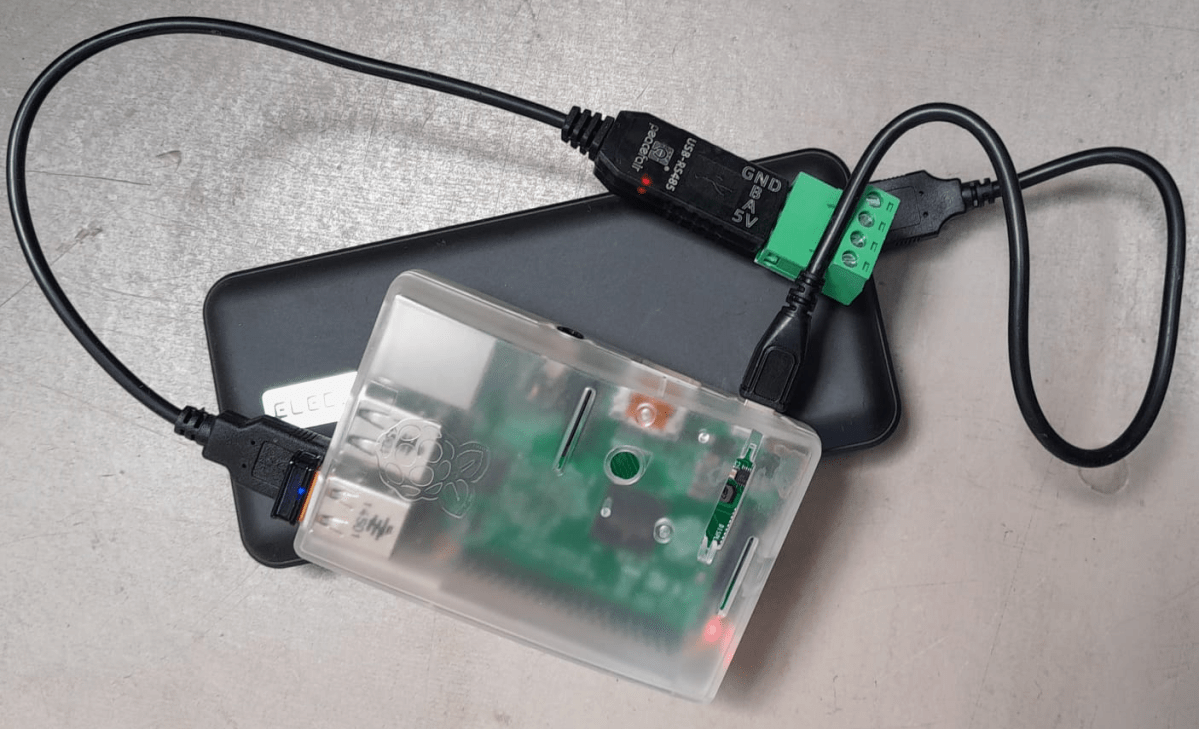
As I am building a couple of batteries mostly with JK-BMS I need a RS-485 connection to my Victron inverters to control charge and discharge currents. Except for the GX versions of the MultiPlus-II and EasySolar-II that _sort of_ support RS-485 (not out-of-the-box, but) in a single box, I always need an additional device like a Cerbo, BBB or: a Raspberry Pi!

But as I already wrote: I did not want to support resellers with their pharmacy pricing, so I had a look at the Venus OS compatibility list and saw that – surprisingly – even a Pi 2 is supported. So, I went looking in my shelves, lockers and other places to find these rusty old Pi 2s – and after a couple of weeks I actually found them (when I was looking for something completely different). Anyway, here they are – but only with a single GB of RAM.

Nostalgic side note: yes, there were times where I would have left out the word “only” …

I was not to sure if Venus OS would run on it. And if – how quick. It was time to find out …

Installation was straight forward: following Getting Started was all it needed. I connected the Pi to my local wired network for that purpose and makes updating and installing software much easier. At the very start I also enabled superuser and SSH access.

Note: There was a minor issue or whatever one might call it. After the install of v3.00 (via the SD card) I had the device check for an update (which at that time should not have been available). But for whatever reason, I was offered to update from v3.00 to v3.00. I did that and it worked and after that no more updates were recommended.

From then on, installing additional packages worked without an issue – but took considerably longer than on a Cerbo, Pi 4 or even the GX in the EasySolar.

One thing just seemed to be missing. Having the Pi to act as a Wifi access point (and router with DNS and DHCP). Why would I want this?

Some of my batteries are just standalone installations in a car, trailer or other machinery. And external network is not always available. And I do appreciate the comfort of wirelessly connecting to the GX – just as I am used to when using my EasySolar-II GX.

And as nearly always: I was not the first one to ask for such a feature:

Victron themselves, apparently, have no plans for supporting this feature.

Luckily, pagedo did all the hard work and gave a step-by-step description on how to enable a Wifi access point. And that worked on the Pi 2 as well.

Essentially, we have to enable Wifi, activate tethering and modify the config file:

$> connmanctl enable wifi
$> connmanctl tether wifi on <SsidName> <SsidPassword>
$> connmanctl technologies
$> nano /etc/connman/main.conf
  TetheringTechnologies = wifi
  PersistentTetheringMode = true
  AddressConflictDetection = true

After a reboot, I could successfully connect to the access point and VictronConnect immediately found the “Cerbo”:

Raspberry Pi 2 Model B Rev. 1.1 as a Victron GX device while acting as an access point

After I enabled the access point (or tether option) I could no longer see or access any other SSIDs from the Pi:

WLAN client is deactivated when running an access point

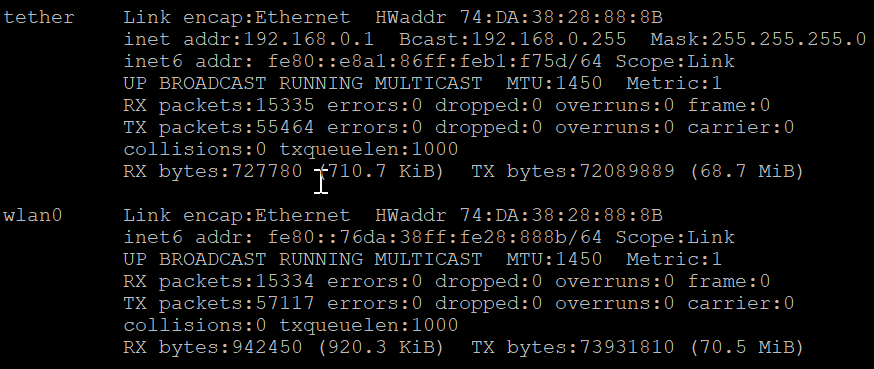
Running ifconfig gave me this output:

ifconfig output after enabling the access point

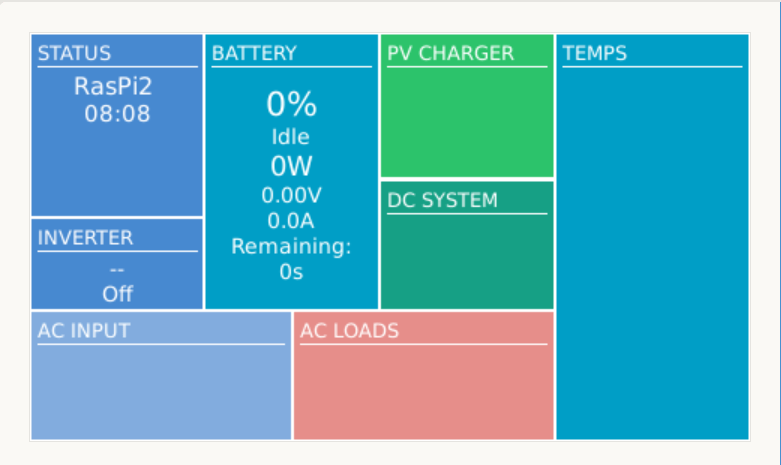
Certainly, I was interested in the performance or resource consumption of the Pi 2. As it turned out, the UI really took some CPU but the additional network services themselves were not quite as hungry: idle floats between 71% and 92%.

Pi 2 running with a RS-485 adapter and enabled access point

So, this is it. My investment of roughly 35$ in 2016 (even with intereste rate) really paid off. I have a working GX device that does everything I want – plus an access point – all in a single box.

Pi 2 running with dbus-serialbattery, BatteryAggregator and access point