Electric Installation in our Toyota HiAce 1994

Now, that we got our Toyota HiAce we thought it might be a good idea to add more power to the vehicle: in form of an 8s EVE LF280K LiFePO4 battery and a Victron MultiPlus Compact 24/1600/40-16 inverter/charger. In the following, we describe our setup and the reason why we built it like this.

The Requirements

  1. The sustained output power of the inverter must be over 1'200W.
  2. Charging via AC via EVSE or generator must be possible.
  3. Charging via alternator must be possible (but is not the norm).
  4. Charging of 60% of the battery (from 20% – 80%) via AC should take less than 180min.
  5. The installation should use the minimum amount of space possible.
  6. We should be able to use our existing Eve LF280K cells, thus limiting the overall current to 140A.
  7. As the vehicle will not have a diesel heater, it should be possible to run a 150W infrared heater for at least 3 * (4+2)h = 18h (^= 2'700Wh).
  8. In addition, the battery should be able to run a refrigerator with an average power consumption of 50W for at least 72h ^= 3'600Wh (next to other power consumption).

Design Considerations

  • With a maximum current of 140A and a cable run length of 1.5m, we should plan with a cross section of at least 35mm2.
  • Basically, with Eve LF280K cells we have three choices regarding the battery size:
    • 1* 4s (“12V”) Configuration
      4 * 3.2V * 280Ah = 3'584Wh
      This would lead to a required nominal AC charge power of at least 716.8W/h and a charge current of at least 56A/h.
    • 2* 4s (“12V”) Configuration
      2* 4 * 3.2V * 280Ah = 7'168Wh
      This would lead to a required nominal AC charge power of at least 1'433.6W/h and a charge current of at least 112A/h.
    • 1* 8s (“24V”) Configuration
      8 * 3.2V * 280Ah = 7'168Wh
      This would lead to a required nominal AC charge power of at least 1'433.6W/h and a charge current of at least 56A/h.
  • The Victron MultiPlus Compact xx/1600VA inverter/charger provides enough sustained power output (while being smaller than the non-Compact edition). Depending on the voltage of the battery, this will slightly impact the amount of charge current.
  • To charge the battery via the alternator we would need a DC/DC converter that depends on the battery configuration as well (either 12-12 or 12-24). So, let’s have a look at the battery first.

1* 4s (“12V”) Configuration

The smallest, lightest and cheapest configuration. But capacity requirements regarding the fridge are only fulfilled, if there are no other loads. In addition, the discharge current is relatively high (scratching the maximum discharge rate of 0.5C).

2* 4s (“12V”) Configuration

More complex setup, as each battery needs a separate BMS, which leads to the need of an aggregator for both batteries to correctly report SoC and calculate CCL and DCL. In addition, more cabling and fusing is required (and probably to a large bus bar). Comes with the advantage of having a redundant battery in case a single battery fails. Most expensive configuration.

1* 8s (“24V”) Configuration

Custom battery build needed, as there is not enough space for a typical 2 * 4 cells setup behind he seats. But, only a single BMS and thus less wiring is needed. Comes with a slight disadvantage of not having native 12V from the battery. This is actually not an isse, as all our DC devices also accept 24V. Cells can better balance voltage differences across a single 8s bank.

The Setup

In the end, I decided for the 8s configuration, due to less complexity. Splitting the 8s configuration across two cell blocks seemed to be an acceptable compromise.

As a regular MultiPlus 24/1600/40-16 would not fulfill my AC charge requirements, I had to decide to either add a second MultiPlus or to add a dedicated charger. I opted for a Phoenix Smart IP43 Charger 24/25 instead of a second MultiPlus. The MultiPlus in parallel would always consume 10W though most of the time I would not need the output power. Whereas, the Phoenix would only need power, when connected to AC. And reconfiguring the MultiPlus every time I charge was not an option for me. And yes, I lose redundancy – but also save some money (Phoenix is much cheaper). So, in the end the nominal charge power is 40A + 25A = 65A, which lets me charge at 1'560W reaching 60% within 165min.

The HiAce comes with a 70A alternator, so I chose a Orion-Tr Smart 12/24-15 DC-DC Charger. With this charger, I could run the engine in standby and still have the car heater running. And this is probably the predominant use case (if charging via alternator at all).

For the DC bus bar I went for a Victron Lynx Distributor, so I could use and install MEGA fuses. Having a 1’000A bus bar seems certainly overkill, but a separate bus bar and fuse box that accepts 35mm2 cable and MEGA fuses would be not be much smaller.

I changed the existing AC inlet of the HiAce to Neutrik PowerCON True1 TOP (congrats to the marketing department, I am still amazed how this name rolls of the tongue) and installed 2 Siemens compact 16A C RCBOs (external AC in, internal AC out). I am aware that theoretically I could support more than 16A on the internal AC out (via PowerAssist). If ever needed, I can replace the RCBO with a 20A version.

I added a VE.Bus Smart Dongle to the MultiPlus and opted against a complete (Raspberry-based) GX installation. The reason, I keep a USB MK3 with me anyway (in case I need to reconfigure the MultiPlus) and still have (Bluetooth) access to the most important settings and information of the MultiPlus. With the GX, I would to be running a WiFi hotspot (and consuming more energy as well). The disadvanage of not being able to use DVCC with information from the BMS is clear to me and accepted.

I selected a B2A8S20P JK-BMS that has an integrated 2A balancer and an RS485, CAN and heat port. In case, I ever add a GX device, I am still able to connect them and use DVCC.

The Specs

  • Nominal power (“capacity”)
    8 * 3.2V * 280Ah = 7'168Wh
  • Maximum discharge power 1’600VA (1'280W, capped by the inverter)
    with a maximum current of 80A/63A/55A (at 2.5V/3.2V/3.65V)
  • Maximum AC charge power 1'560W
  • AC Charging from 20% – 80% in 165min
  • Maximum DC charge power 360W
  • MultiPlus self-power consumption 10W

The Build

As mentioned before, due to space constraints I had to split the battery in 2 parts (with each having 4 cells). Instead of using utz RAKO boxes I used 12mm (sanded) plywood which I did not screw together but tied down with a banding/tensioning tool and a ratchet strap. With this setup, I can easily access und disassemble the cells if needed, while still having a sturdy case. Both cell blocks are connected with a (blue) Anderson SB175 connector.

The BMS itself is mounted to the side of one of the cases (I took extra care to use short screws, in order not to drill into the cell casing). I used M6 Weidmüller 35mm2 90° angled compression cable lug to get the wire away from the BMS and into the bus bar. All other compression cable lugs are DIN 46235 from Klauke (M6 35mm2 on the cells, and M8 16mm2/35mm2 on the bus bar).

The AC and DC wires are all Eland H07RN-F (except for the last two points):

  • Charger to bus bar, battery to bus bar: 35mm2
  • Cell block to cell block: 2 * 35mm2
  • Alternator to DC-DC converter, DC-DC converter to bus bar: 16mm2
  • External AC in to RCBO, RCBO to inverter/charger (both directions), RCBO to internal AC out: 3G2.5mm2
  • For the balancer cables on the cell blocks I used WAGO 221 inline splicing connectors with levers and bullet connectors with 2.5mm2 wire and M6 ring terminals.
  • For the connection of the Inverter/charger to the bus bar, I used the Victron installed 25mm2 welding cables.

Images

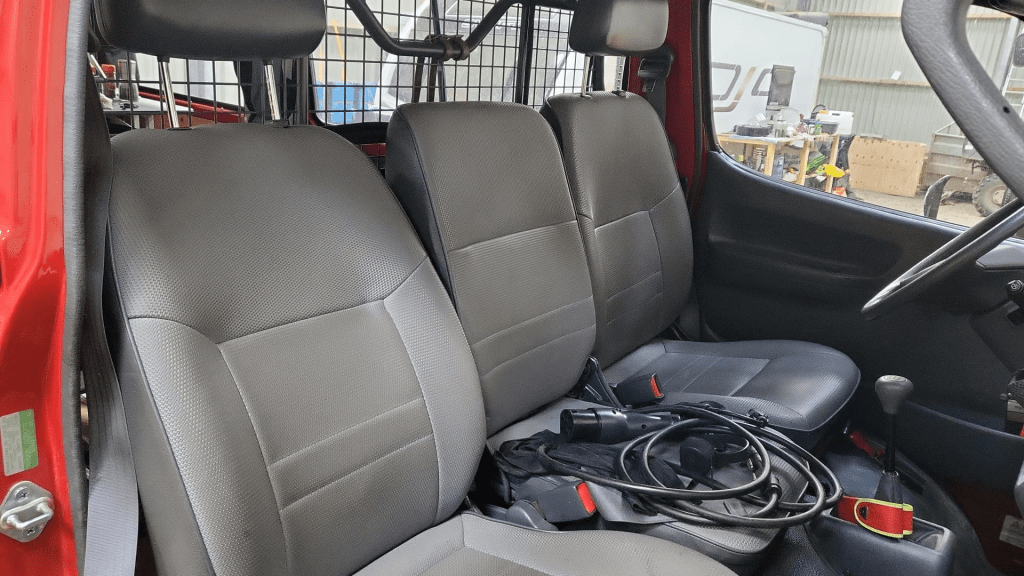
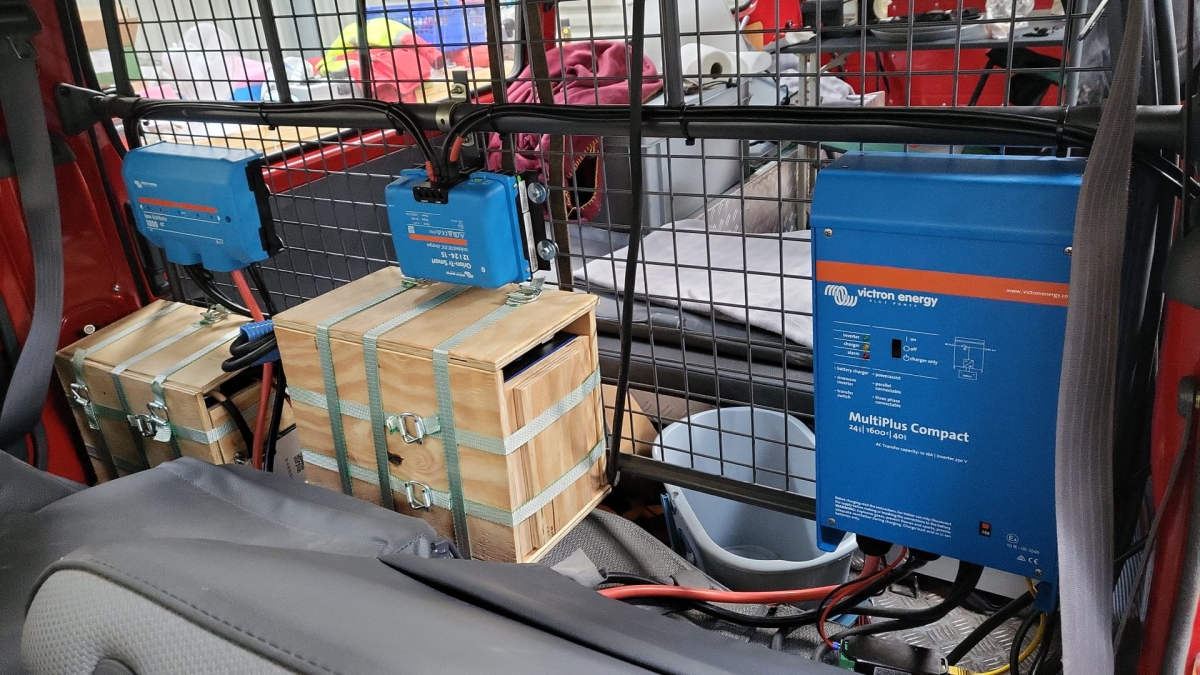
The installation is barely visible behind the seats
View from the back with preliminary wiring
Connection of cell blocks with SB175 connectors, cell block 2 and DC-DC converter
Lynx Distributor with cell block 1
Inverter/charger with space for second charger and cell block 2 (left)

Note: the Phoenix charger is not visible on the images, as I am still waiting for it to be delivered.

Charging via EVSE

Conclusion

We now have more than 7'000Wh of additional energy without losing any storage space for roughly 2'850 CHF/2’500 GBP (parts without labour). We can survive an extended weekend of 72h without recharging while still being able to enjoy amenities as using a coffee machine, heating and refrigerator. In case of longer periods of usage, we can recharge at any EVSE, or via shore power. And in emergencies, we can also charge via our Honda EU10i or via the alternator of the vehicle.

The battery is placed directly over the engine which helps in cold weather conditions to easily warm up the batteries to a chargeable level.

The installation can be monitored via Bluetooth (Victron Connect and JK-BMS app).

ESP32 with PlatformIO, C++, Unity and ESPIDF

As a follow up to my post about ESP32 with PlatformIO and Arduino, in this post I present how to use PlatformIO with the Espressif IDF (or ESPIDF, for short) in conjunction with C++ and Unity as a UnitTesting framework.

It proved to be much more difficult to get this running than with the Arduino framework.

Here are our requirements for development:

  1. Support (hardware and framework independent) unit tests to be run on the local dev machine (aka env:native).
  2. Support hardware and framework specific unit tests to be run on the actual microcontroller.

Here are some similarities and differences between ESPIDF and Arduino:

  • Again, the native environment will be compiled via SYS2/Mingw64 whereas the microcontroller environments are compiled by the compilers provided by the PlatformIO toolchain.
  • ESPIDF uses app_main() instead of the setup()/loop() construct in Arduino.
  • ESPIDF by default creates a main.c instead of a main.cpp file. We therefore have to use extern "C" { } to unmangle the symbols in our code.
  • For whatever reason the use of #ifdef __cpluscplus always evaluated to false and was therefore not usable. Thus, I used extern "C" unconditionally in the code.
  • To detect the ESPIDF framework, I used the ESP_PLATFORM symbol (instead of the ARDUINO symbol).
  • All framework dependent cpp and h lib files are guarded with #if defined(ESP_PLATFORM).
  • All test code (test_embedded and test_native) has to be surrounded with extern "C" as well (only the code and certinaly not the #includes).
  • Classes and code in lib_dir should not be surrounded with extern "C".
  • Also, I pretty much moved all the code to lib_dir, so the main.cpp is essentially only a stub.
  • We have to manually enable exceptions to support throw etc via build_flags: -fexceptions.
  • (not unit test related) Reading out GPIO to get the state of an LED always returns 0.

The final result can be found here.

Summary

Again, it is quite quirky to setup the development environment. Plus, I could not find a single example out in the wild (PlatformIO in conjunction with C++, Unity with embedded and native testing, ESPIDF).

In the end, I now have a working environment where I can hopefully do what I want to do: sending and receiving CAN messages via the TWAI interface. We will find out …

Reverse engineering the BYD Battery-Box Premium LVS CAN Protocol for Victron Venus OS

On my goal, to build a battery with a Venus OS compatible CAN interface I decided to have a look at he BYD CAN protocol – for several reasons:

  1. It is supported with Victron and Venus OS.
  2. I happen to have a BYD Battery-Box Premium LVS dual battery system.
  3. I heard mixed information about the Pylontech CAN protocol implementation.

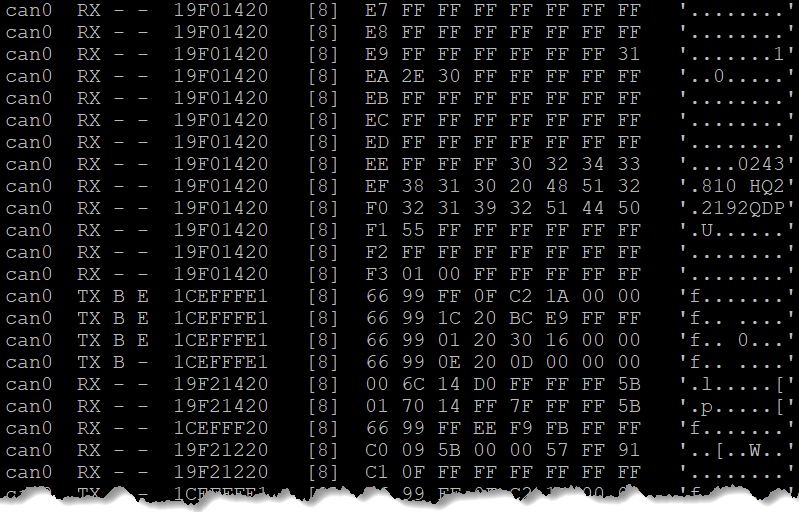
So, I got myself a Kvaeser Memorator Light, in order to be able to sniff the CAN traffic between a Venus OS and the BYD BMS. For whatever reason, I did not get it to work, so I ended up with candump – which proved to be more that sufficient for what I needed.

Note: of course, before I started reverse engineering the protocol, I made some effort to find resources and someone who might have already done that – but no luck. However, there were some fragments regarding HVS systems. But they did not seem to be compatible with the LVS implementation.

If you are interested in the result, you can head right here. Otherwise, stay with me and I explain my approach to correlate the identifiers and data pieces.

  1. First, I just started candump to check the general message flow and to see some recurring patterns (working/normal operation, UseCase A).
  2. I then verified that the communication (which runs at 500kb/s) only consists of 11bit identifiers and no FD frames.
  3. I then identified the several message ids based on sender (TX, Venus OS) and receiver (RX, BYD).
  4. I then monitored the message flow, when I disconnected the BYB BMS temporarily (UseCase B).
  5. And then I monitored the message flow, when there was no BYD BMS present at start and then powered it on (UseCase C).
  6. Have alarms and warnings being sent by the BYD BMS (UseCase D). (see note below)

Things to consider:

  1. What are the units of the data being sent (e.g. temperature came in Kelvin/K)?
  2. What is the byte ordering (e.g for WORDs expect the low byte first and then the high byte)?
  3. Is there a scaling on the data being sent (e.g. 1/10mV)?
  4. Is information distributed over different messages? Or does one message have a special meaning in correlation to another message? (e.g. cell voltage and temperature)

For most of the parts, I *knew* what data to expect or to look for. I just looked at the BMS device inside the Venus OS and looked for data that matched the information shown on the GUI.

In the end, I identified most of the messages. For alarms and events, I will verify them once I have a working prototype on my ESP32 by simulating and sending them to Venus OS. [Edit: Alarms and Warnings are now identified and described. Events seem to be not supported. With 17 frames/messages I can now setup a complete BYD battery simulation towards a Venus OS.]

Here is a Summary: BYD Battery-Box Premium LVS CAN Protocol. There you find also some image of Venus OS with the correspnding information as shown on the GUI.

Hope you find this useful.

ESP32 with PlatformIO, C++, Unity and Arduino

After a quick adventure with the .NET nanoFramework on microcontrollers, I sort of came back to my senses and continued with something that seemed to have a brighter future (read: more supported boards, more documentation, bigger community, …). So, after a quick look around, I tried: PlatformIO:

Sounds just too promising. At least promising enough to reactivate my C++03 knowledge and bring it up to at least C++17 (spoiler: after all there _was_ a reason why I switched to C#).

On the way I found out, that we now support auto, bool and lambda expressions but kept the splitting-of-declaration-and-implementation-nightmare – yikes …

Installation

Installation of PlatformIO was really straightforward. After the installation of VSCode, I installed the Python, C/C++ and the C++ extension beforehand. That automatically brought me CMake as well. And after that I just had to add the PlatformIO extension.

From there I could start and create my first project. And depending on the framework chosen (Arduino in my case) the main.cpp comes with either setup() and loop() or just app_main() (EspIdf).

Note: if the main file (under the src folder) is a main.c we have to rename it to main.cpp to use C++ features – I totally forgot about that …

Unit Testing

Building and flashing the controller “just worked”. So, I started to port my C# HelloWorld morse code generator to C++. Certainly, I wanted to write some unit tests along that way. And there the “trouble” started …

There is documentation, but I totally missed the way how unit testing are to be done with PlatformIO (at least when it is one with Unity:

  • First, unit tests are either “local” or “native” tests (on your dev machine) or “embedded” tests. We have to set up a separate *environment* for each.
  • The microcontroller framework (Arduino, in my case) is not supported on the native environment (not even an #include <Arduino.h> is allowed). So, we have to make sure, we use only code that is totally hardware independeent.
  • PlatformIO does not install a toolchain for the native environment (i.e. we have to install a C/C++ compiler ourselves). And on Windows, it is recommended to use MSYS2 with Mingw64. That effectively means, we have different compilers depending on the environment. Something, that just feels weird to me. And something that could cause problems, as I later should find out.
  • Every test is compiled as a separate executable with a main() function. Something I am not used to in a .NET environment. And here is again, it matters which framework (Arduino or EspIdf) we are using, as we have to repeat setup()/loop() or app_main() again and again.
  • The main code in the src folder is compiled as well, which leaves us with duplicate main() function. Preprocessor with #if defined() to the rescue – quite clumsy …
  • And then the main thing: we essentially have to move all the application code to the lib folder, as -by default- the src code is not included when unit testing. That is not only strange to me, but leaves the src folder being an empty stub, as all the code now lives in the the (private) lib folder.
  • Documentation or the Calculator example were only partially helpful. I ended up with the weirdest compilation and linker errors I never dared to imagine.
  • Unity requires we need to specify all tests manually if we want to run them.

But in the end, I got it working. Here is what I did:

Summary

My first impression is … mixed. On the one hand, PlatformIO makes it relatively easy to develop for different hardware/boards. Due to VSCode the “developer experience” is much better than with the Arduino IDE.

But … setting up Unit Testing and how it is implemented is rather awkward. Needless to say, that error messages are not for the faint of the heart.

I cannot say, that I miss my C++ days. On the other hand, not something I could not get used to and around with it.

Hello, world! morse code generator on an ESP32

C# .Net on a Raspberry Pi 400 running Venus OS

Today, I tried to run a C# console application on a Venus OS – and it pretty much worked right away. But why would I want to do that?

The answer is simple: a couple of weeks ago I started to add some “drivers” to Venus OS to support additional features like using a MultiPlus-II as a charger for top balancing cells. With Venus OS, most of the examples I found were written in Python (except for some C++ extensions). And it is no secret that I am not too fond of that. So, why not using my favourite programming language on Venus OS as well?

My first thought was, I would have to install the .Net framework on Venus OS. But, with the advent of self-contained (and thus framework-independent) executables this is not needed.

First, I installed .NET on a Raspberry Pi 400 with Raspbian (just for the fun of it). I basically followed Deploy .NET apps on ARM single-board computers:

curl -sSL https://dot.net/v1/dotnet-install.sh | bash /dev/stdin --channel STS

echo 'export DOTNET_ROOT=$HOME/.dotnet' >> ~/.bashrc
echo 'export PATH=$PATH:$HOME/.dotnet' >> ~/.bashrc
source ~/.bashrc

dotnet --version

… and there it is!

And then it was time for another infamous Hello, world!:

dotnet new console -o HelloWorld
cd HelloWorld

And now for the compilation.

dotnet publish --sc -r linux-arm -c Release -p:PublishTrimmed=true

linux-arm was needed, as Venus OS is a 32-bit operating system (regardless of the 64bit architecture of the Pi 400). I chose PublishTrimmed to save some space. And of cource, --sc for self-contained.

I then gzipped the publish folder and copied it to the Venus OS (via WinSCP). After uncompressing the files (with permissions left intact), I ran the program and got this error:

Process terminated. Couldn't find a valid ICU package installed on the system. Please install libicu (or icu-libs) using your package manager and try again. Alternatively you can set the configuration flag System.Globalization.Invariant to true if you want to run with no globalization support. Please see https://aka.ms/dotnet-missing-libicu for more information.

Enabling invariant mode seemed to be the easier choice. After all, my future drivers would hopefully not need globalisation support anyway. So, I recompiled after adjusting the .csproj file:

<PropertyGroup>
    <InvariantGlobalization>true</InvariantGlobalization>
</PropertyGroup>

… and it worked:

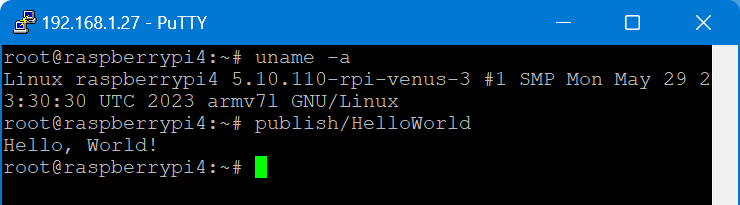
root@raspberrypi4:~# publish/HelloWorld
Hello, World!

I executed this on a Raspberry Pi 400 running Venus OS v3.00 and .Net 7.

From there, I wanted to connect to D-Bus which proved to be more difficult. Following the Connecting .NET Core to D-Bus I had to find out that Tmds.DBus.Tool was not compatible with .Net 7. I will have to look into that separately.

Note about IL trimming: the size difference is really noticable. In my example the untrimmed compilation was around 65MB and the trimmed version around 13MB. However, it seemed to me that the trimmed version took slightly longer to load and execute. So, I am not sure if I will keep this switch on.

So, what would be the perceived advantages of using .Net on Venus OS for me?

  1. Known developing environment
  2. Better type safety
  3. Reusability of a lot of basic code
  4. Easier testing and mocking

But this is only my personal opinion and preference. Yours might differ.

Initial setup of a Venus OS on a Raspberry Pi without a wired network connection

When setting up a Raspberry Pi to run Venus OS, the GUI is not available on the local HDMI port – it is running headless by default. However, in order to connect to a Wireless network, we need to access that UI.

As mentioned in the above link, there is a workaround to it: renaming (or removing) the /etc/venus/headless file. This can be done by connecting via the serial port to the PI using the Adafruit USB to TTL serial cable. There is a very thorough article on how to connect to the port.

In short, pin 8 (GPIO14, TX) is white; pin 10 (GPIO15, RX) is green and pin 6 can be used as ground (black) and DO NOT USE the red wire. See here for the actual Pin layout. We can then use Putty to make a connection to the Pi (at 115200bps).

So far, so good. However, when trying to rename the headless file the following error message appears: mv: can't rename 'headless': Read-only file system

As pointed out in Cannot change headless – Read only filesystem on Rasp4 for Venus OS large two options exist:

  1. Make the file system read/write via /opt/victronenergy/swupdate-scripts/remount-rw.sh
  2. Enable superuser access (unfortunately, this requires GUI access – chicken-egg-problem here)

But instead of making the filesystem read-write until the next firmware update, I would rather only temporarily remount via mount -o remount,rw /.

And after that, renaming/removing the headless file succeeds.

Following the next reboot, the file system is then mounted read-only again and the GUI appears on the local HDMI port.

Now we can configure WLAN settings and everything else (such as superuser access) without the need for a wired network.

And in case you are in the need of a very small keyboard / display combination, you can use

Connecting to Wi-Fi with via Bluetooth and Victron Connect

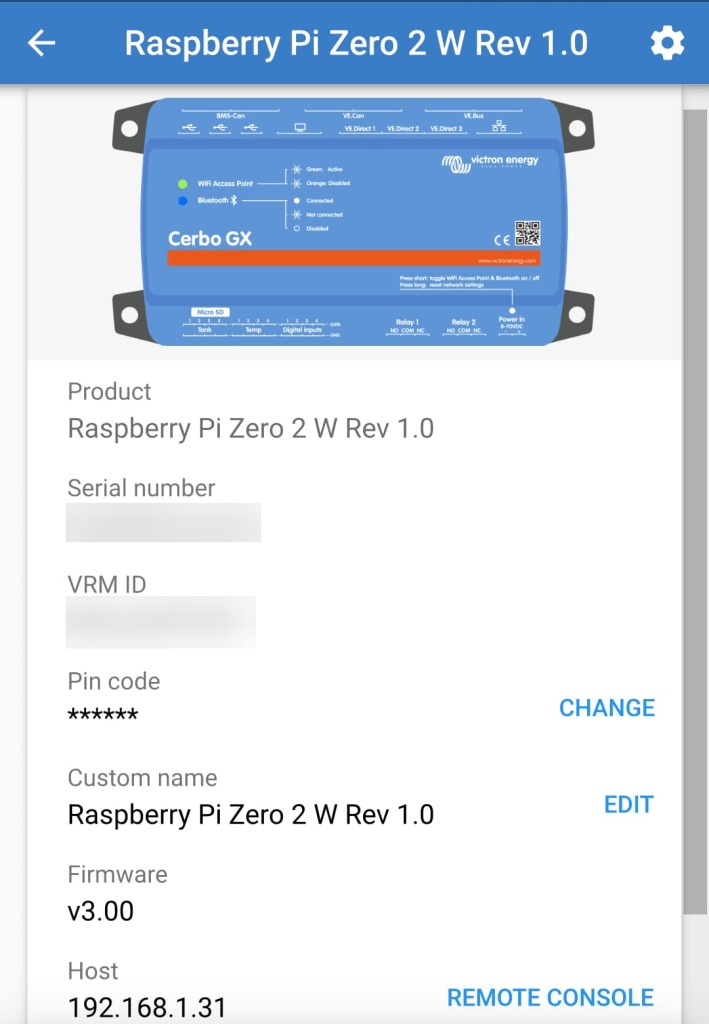
In case you only want to connect to Wi-Fi and do not happen to have a serial cable, but you want to use the Raspberry Pi’s bluetooth connection, you can use Victron Connect to configure wireless network settings.

For this you start up Victron Connect on an Android (or Apple i device, Windows will nork work for that) and discover the Raspberry you want to connect. When pairing with the Pi use 000000 as the pin code.

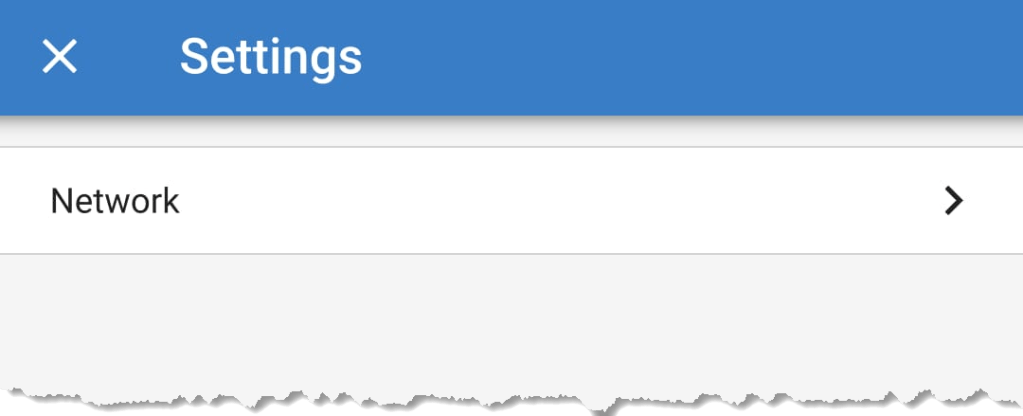
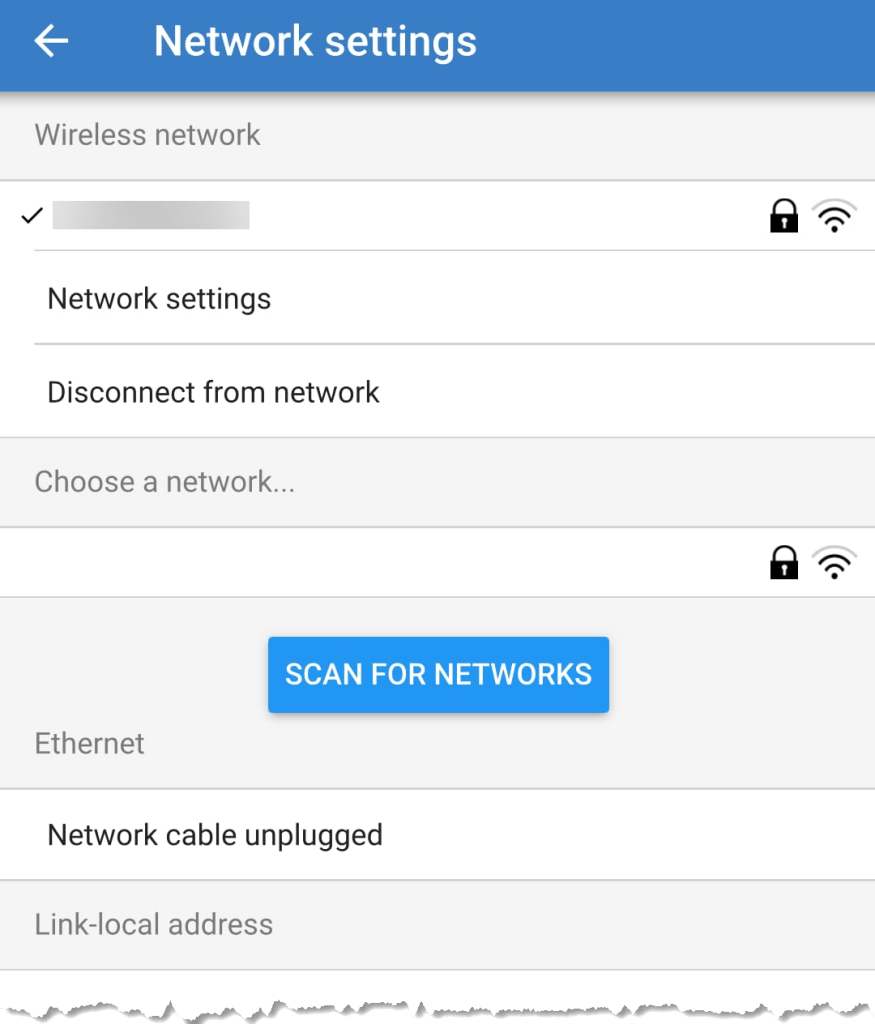
After that you will find the gear icon in the upper right corner. From there you can select Network settings and connect to your WLAN.

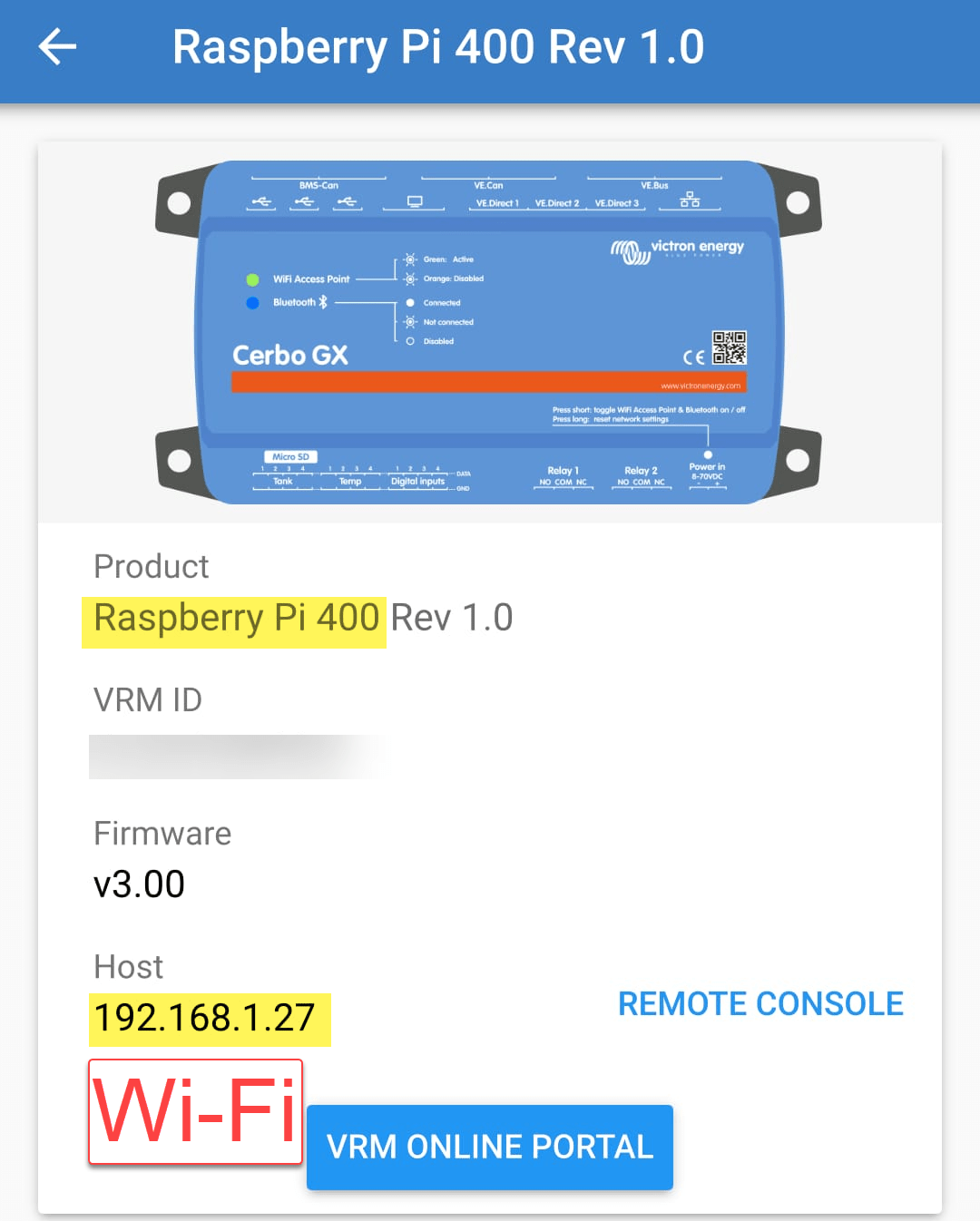
Below you find some screenshots.

Bluetooth connection to Venus OS via Victron Connect
Configure Network settings
Connecting to a WLAN

Enabling WiFi on a Raspberry Pi 400 with Venus OS

When we run Venus OS without any modifications on a Raspberry Pi 400 no WiFi is detected – though the Pi 400 certainly has WiFi onboard.

As it seems, I am not the first one to notice that. bipedalprimate presented a solution by copying a bunch of Raspbian /lib/firmware files to the Venus OS. But as it turns out, things can be achieved much simpler.

It seems, that the driver on the 400 is differs from the chipset of a _regular_ Pi 4: it is the brcmfmac43456.

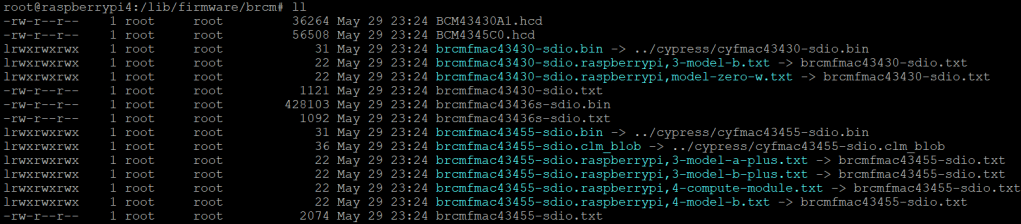
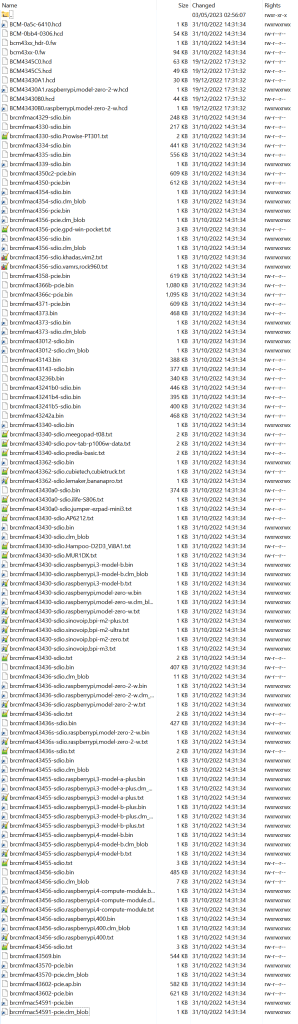
When looking at the /lib/firmware/brcm folder of a Venus OS these drivers are missing:

Venus OS v3.00 contents of /lib/firmware/brcm

On a Raspberry Pi 400 things look different:

Raspberry Pi 400 Raspbian 6.1.21 contents of /lib/firmware/brcm

As it seems, only a few files are required for a Raspberry Pi 400 and only a few belong to the brcmfmac43456. Most of the files are in fact links to other files (and some are in the cypress directory).

So, I did the following: I copied the brcm and cypress directories to a USB stick and inserted it into the Pi 400. From there I copied the driver files to the respective directories inside /lib/firmware, added some links and adjusted the permissions. Below you see the commands I used.

Note1: I am a novice when it comes to Linux, so pls do not expect any sophisticated shell scripting.

Note2: by default the root file system is _read-only_. Therefore I re-mounted it as read-write (so, maybe our changes will not survive a firmware update).

Note3: my USB stick was mounted as /run/media/sda1. Yours might be different.

mount -o remount,rw /
cd /lib/firmware/cypress
cp /run/media/sda1/cypress/cyfmac4356* .
chmod 644 cyfmac4356*
cd /lib/firmware/brcm
cp /run/media/sda1/brcm/brcmfmac4356-pcie.gpd-win-pocket.txt .
chmod 644 brcmfmac4356-pcie.gpd-win-pocket.txt
ln ../cypress/cyfmac4356-pcie.bin brcmfmac4356-pcie.bin
chmod 777 brcmfmac4356-pcie.bin
ln ../cypress/cyfmac4356-pcie.clm_blob brcmfmac4356-pcie.clm_blob
chmod 777 brcmfmac4356-pcie.clm_blob
ln ../cypress/cyfmac4356-sdio.bin brcmfmac4356-sdio.bin
chmod 777 brcmfmac4356-sdio.bin
ln ../cypress/cyfmac4356-sdio.clm_blob brcmfmac4356-sdio.clm_blob
chmod 777 brcmfmac4356-sdio.clm_blob
ln brcmfmac4356-sdio.AP6356S.txt brcmfmac4356-sdio.khadas,vim2.txt
chmod 777 brcmfmac4356-sdio.khadas,vim2.txt
ln brcmfmac4356-sdio.AP6356S.txt brcmfmac4356-sdio.vamrs,rock960.txt
chmod 777 brcmfmac4356-sdio.vamrs,rock960.txt
cp /run/media/sda1/brcm/brcmfmac43456-sdio.bin .
chmod 644 brcmfmac43456-sdio.bin
cp /run/media/sda1/brcm/brcmfmac43456-sdio.clm_blob .
chmod 644 brcmfmac43456-sdio.clm_blob
cp /run/media/sda1/brcm/brcmfmac43456-sdio.txt .
chmod 644 brcmfmac43456-sdio.txt
ln brcmfmac43456-sdio.bin brcmfmac43456-sdio.raspberrypi,400.bin
chmod 777 brcmfmac43456-sdio.raspberrypi,400.bin
ln brcmfmac43456-sdio.clm_blob brcmfmac43456-sdio.raspberrypi,400.clm_blob
chmod 777 brcmfmac43456-sdio.raspberrypi,400.clm_blob
ln brcmfmac43456-sdio.txt brcmfmac43456-sdio.raspberrypi,400.txt
chmod 777 brcmfmac43456-sdio.raspberrypi,400.txt
mount -o remount,ro /
Commands necessary to enable WLAN support on Raspberry Pi 400 for Venus OS v3.00

Two brcm-links are giving errors, but this can be ignored. The links on the Raspbian are not working either.

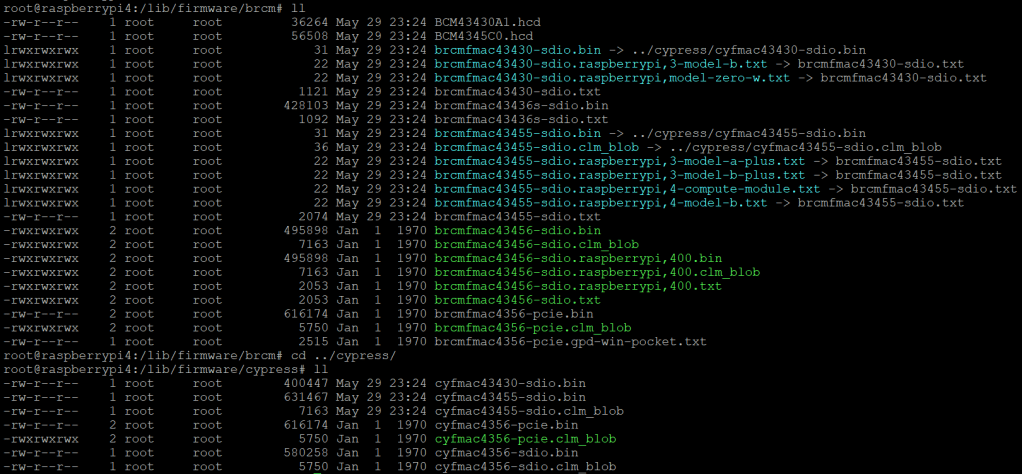
After copying the files both directories looked like this:

Venus OS v3.00 firmware brcm and cypress folder after adding the driver files

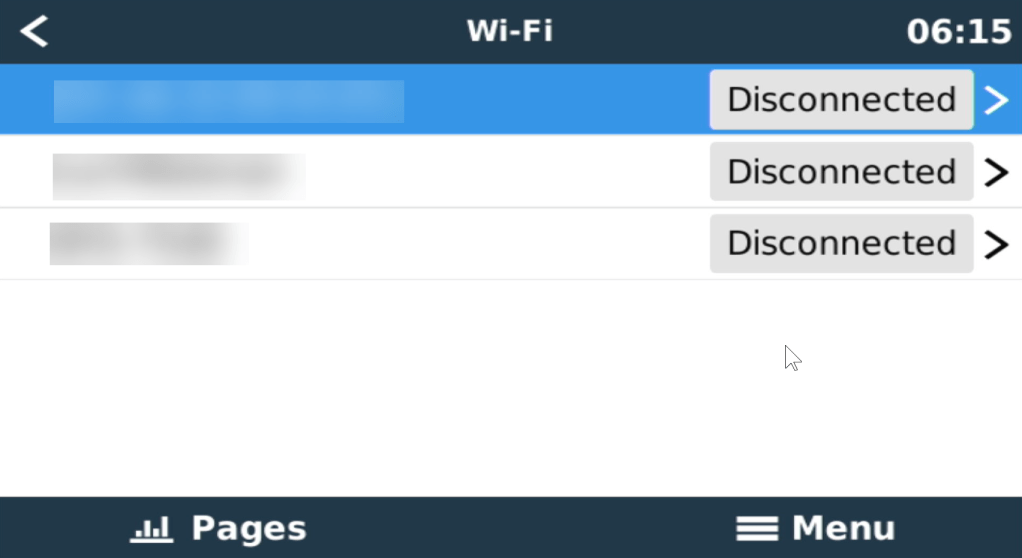
After a reboot I could browse and connect to my SSID via Settings, Wi-Fi:

Wi-Fi networks visible after a reboot
Established connection to a Wi-Fi network

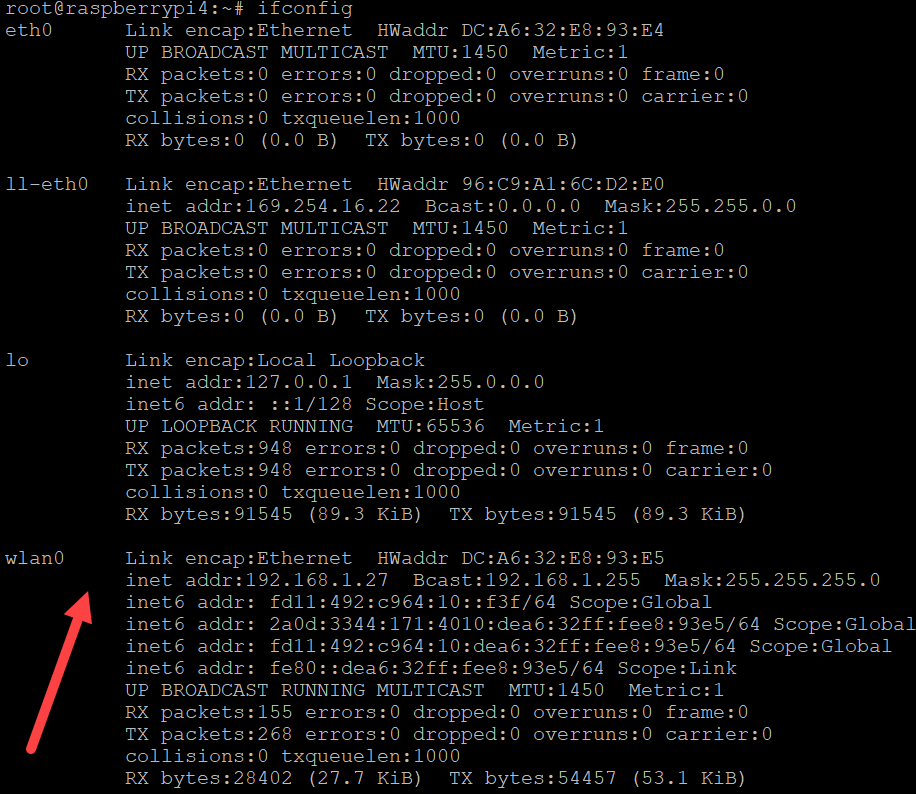
And from the serial console, ifconfig also showed our new interface:

Venus OS recognising the Raspberry Pi 400 WiFi interface

Now, the Raspberry Pi 400 can be used like any other Pi with Venus OS.

Thanks again to bipedalprimate for pointing me in the right direction!

Honda EU 10i: a perfect backup for the Victron MultiPlus-II 24/3000/70-32

In our trailers and vehicles I prefer 24V 8s batteries, as the price-weight-power triangle of our Eve 280Ah cells is hard to match. With a gross weight of roughly 55kg we get a nominal “capacity” of 7168Wh. Even at a low cell voltage of 2.7V we can still get more than 2400W (3000VA) out of the battery. Exactly what a Victron MultiPlus-II 24/3000/70-32 (or any 3000VA inverter/charger for that matter) can deliver.

The Honda EU 10i has a sustained output of 900W which equates to roughly 3.9A at 230V. Now, this is not too interesting by itself.

However, the minimum AC current input of the MultiPlus is 3.6A. So, exactly within the range of the Honda EU 10i. A 5000VA inverter for example, would drain the generator with its minimum input of 4.6A+. And with its fuel tank capacity of 2.1l it runs nearly 4h on full load. Which in turn means, I can charge our 24V 8s battery about 50% without refueling.

Note: ideally we would charge it from 25% up to 75% SoC.

So, for me this generator is the ideal backup when I am away without any EV station nearby. With its 13kg and small form factor (and price) there is always a place in my vehicles where I can put it.

And as a side benefit: when I run the generator along with the inverter I can generate up to 3300W (or over 14A). That is: run my oven and boil potatoes at the same time …

And the generator even makes sense when combined with a Victron MultiPlus Compact 24/1600/40-16 (or its 12V counterpart). They are the smallest inverters/chargers in that power range. They strong enough to run a coffee machine or immersion water heater, but are not pwoerful enough to run a full 2000W appliance. However, in combination with the Honda, they just reach 2180W. Of course, charging a 24V 8s battery with a “Compact” device takes much longer, due to its smaller charger.

Twitter – Honda EU 10i in action

Using a Raspberry PI 2 Model B 1GB as a Victron GX device running Venus OS v3.00

Along with some others I am waiting for Raspberry PIs to become available again (while *not* supporting these overpriced resellers on eBay, Amazon and elsewhere).

Luckily, back in 2016 (or was it 2015?) I bought two Raspberry PI2 Model B Rev. 1.1 with 1 GB RAM and an Edimax EW-7811Un WLAN adapter. At that time the PI did not have built-in WLAN and it was said that the original Wifi dongle Raspberry Pi WLU6331 did not work with all distributions.

We had some plans what to do with the Pi – but they never made it into reality. Instead, they went into the locker.

Edimax EW-7811Un WLAN adapter

Fast forward into the future, the whole world experiences stock supply shortages and a Raspberry Pi (now in its 4th generation) is hard to get hold of.

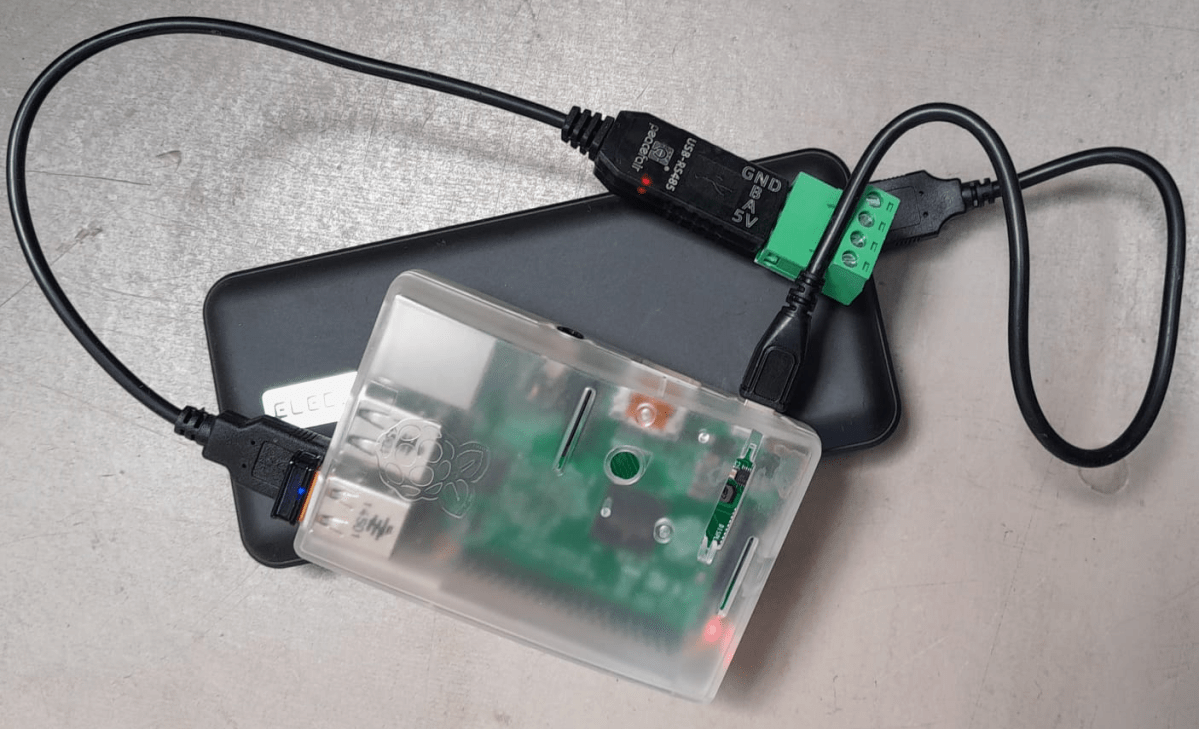
As I am building a couple of batteries mostly with JK-BMS I need a RS-485 connection to my Victron inverters to control charge and discharge currents. Except for the GX versions of the MultiPlus-II and EasySolar-II that _sort of_ support RS-485 (not out-of-the-box, but) in a single box, I always need an additional device like a Cerbo, BBB or: a Raspberry Pi!

But as I already wrote: I did not want to support resellers with their pharmacy pricing, so I had a look at the Venus OS compatibility list and saw that – surprisingly – even a Pi 2 is supported. So, I went looking in my shelves, lockers and other places to find these rusty old Pi 2s – and after a couple of weeks I actually found them (when I was looking for something completely different). Anyway, here they are – but only with a single GB of RAM.

Nostalgic side note: yes, there were times where I would have left out the word “only” …

I was not to sure if Venus OS would run on it. And if – how quick. It was time to find out …

Installation was straight forward: following Getting Started was all it needed. I connected the Pi to my local wired network for that purpose and makes updating and installing software much easier. At the very start I also enabled superuser and SSH access.

Note: There was a minor issue or whatever one might call it. After the install of v3.00 (via the SD card) I had the device check for an update (which at that time should not have been available). But for whatever reason, I was offered to update from v3.00 to v3.00. I did that and it worked and after that no more updates were recommended.

From then on, installing additional packages worked without an issue – but took considerably longer than on a Cerbo, Pi 4 or even the GX in the EasySolar.

One thing just seemed to be missing. Having the Pi to act as a Wifi access point (and router with DNS and DHCP). Why would I want this?

Some of my batteries are just standalone installations in a car, trailer or other machinery. And external network is not always available. And I do appreciate the comfort of wirelessly connecting to the GX – just as I am used to when using my EasySolar-II GX.

And as nearly always: I was not the first one to ask for such a feature:

Victron themselves, apparently, have no plans for supporting this feature.

Luckily, pagedo did all the hard work and gave a step-by-step description on how to enable a Wifi access point. And that worked on the Pi 2 as well.

Essentially, we have to enable Wifi, activate tethering and modify the config file:

$> connmanctl enable wifi
$> connmanctl tether wifi on <SsidName> <SsidPassword>
$> connmanctl technologies
$> nano /etc/connman/main.conf
  TetheringTechnologies = wifi
  PersistentTetheringMode = true
  AddressConflictDetection = true

After a reboot, I could successfully connect to the access point and VictronConnect immediately found the “Cerbo”:

Raspberry Pi 2 Model B Rev. 1.1 as a Victron GX device while acting as an access point

After I enabled the access point (or tether option) I could no longer see or access any other SSIDs from the Pi:

WLAN client is deactivated when running an access point

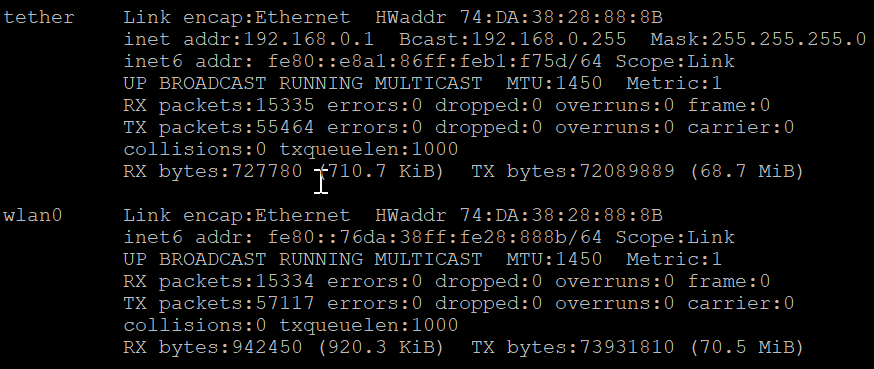
Running ifconfig gave me this output:

ifconfig output after enabling the access point

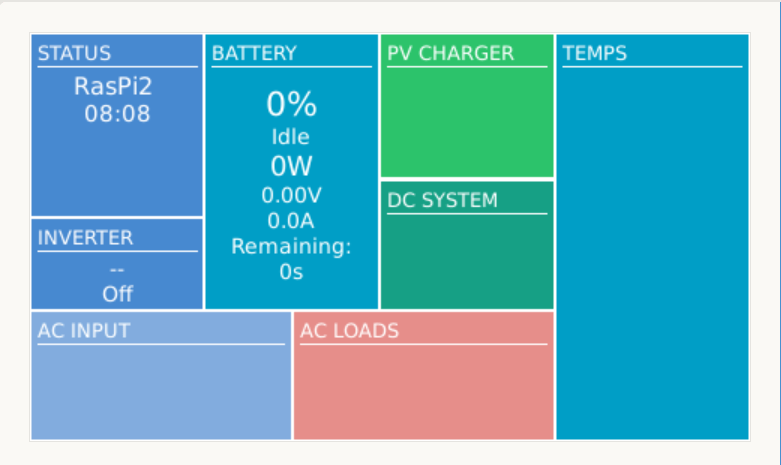
Certainly, I was interested in the performance or resource consumption of the Pi 2. As it turned out, the UI really took some CPU but the additional network services themselves were not quite as hungry: idle floats between 71% and 92%.

Pi 2 running with a RS-485 adapter and enabled access point

So, this is it. My investment of roughly 35$ in 2016 (even with intereste rate) really paid off. I have a working GX device that does everything I want – plus an access point – all in a single box.

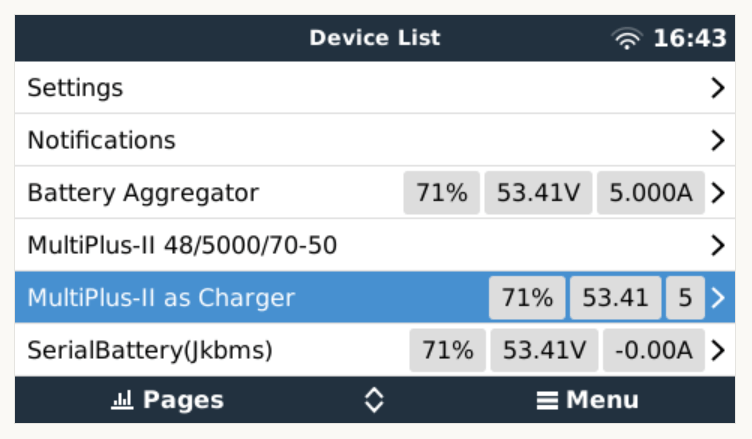
Pi 2 running with dbus-serialbattery, BatteryAggregator and access point

Using Victron MultiPlus-II for top balancing LiFePO4 cells

Top balancing is a topic where a lot of people have written about – and now it is my turn …

It is common understanding to use a regular charger when top balancing, and one the one hand set the Charge Voltage Limit (CVL) to cellCount * 3.65V and use a reasonable current and wait for an extended period of time until all cells have reached their cell voltage maximum. And reasonable means to use a current where the BMS balancer keep up with and distribute the Amps across the cells without going into a Overvoltage (OVP) for a single cell.

So, instead of using a charger with a high supported current of at least 20A we now can use our regular Victron MultiPlus-II inverter/charger – with the help of Venus OS.

The reason why we cannot use a Victron MultiPlus-II out of the box as a charger is the fact, that is does not support fixed Amp configurations (only maximums). And after a while at a specific voltage the MultiPlus-II would enter Absorption phase and thereby reducing the current over time and stopp charging after a while altogether.

So with the help of a custom service (or Python script based on the dummyservice) we can create a battery monitor and set a fixed current.

I am not going into details on how to get a Venus OS device (Victron Cerbo GX or Raspberry Pi) up and running. There is plenty of information on the internet. Or have a look at this article where I briefly describe the setup of a Pi for our BYD battery system.

The *service* itself can be run from a shell: /data/VirtualBatteryMonitor/VirtualBatteryMonitor.py (I copied the script into /data to survive a firmware update).

And then the service should appear in the “Device List”:

Our service as a device to support a constant charge current

There are two more configuration entries needed:

  1. Enable our service as “Battery Monitor” (Settings, System setup, Battery Monitor)
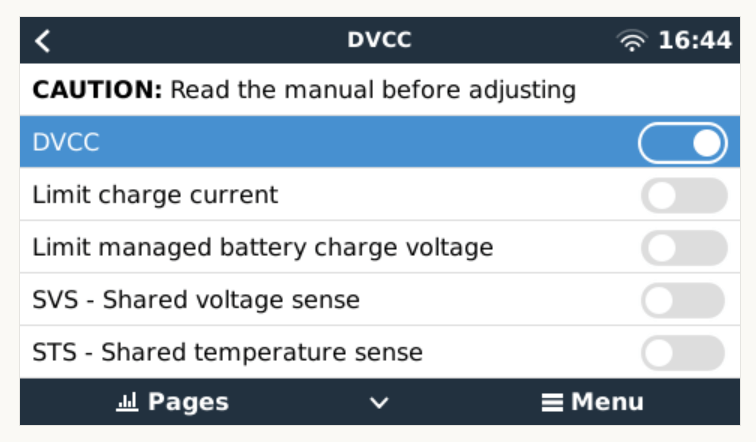
  2. Enable DVCC (Settings, DVCC)
Our service configured as a “Battery Monitor”
Enable DVCC

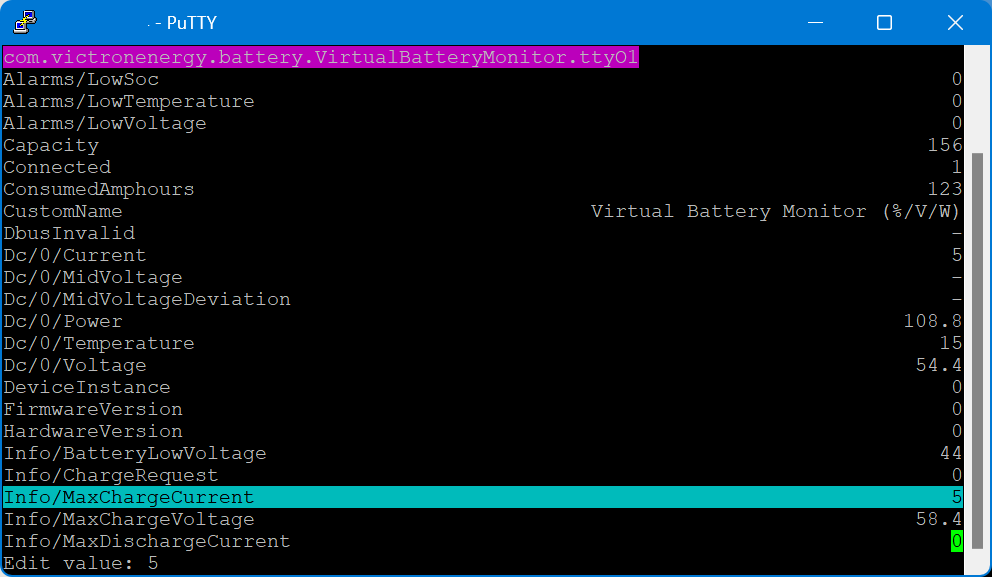
The actual parameters (charge current and maximum voltage) can be configured via dbus-spy from a shell:

Service parameters as shown by dbus-spy

The actually configured values are then shown under “Parameters” of the service (Service, Parameters):

Current configuration set to 5A constant charge current

Note1: There is no need for an actual integration of the BMS with the Venus OS.

Note2: Use at your own risk. Misconfiguring could potentionally harm the BMS, the battery or both.

Note3: Do not leave the script running / the battery charging unattendedly.

#!/usr/bin/env python3

"""
A class to put a simple service on the dbus, according to victron standards, with constantly updating
paths. See example usage below. It is used to generate dummy data for other processes that rely on the
dbus. See files in dbus_vebus_to_pvinverter/test and dbus_vrm/test for other usage examples.

To change a value while testing, without stopping your dummy script and changing its initial value, write
to the dummy data via the dbus. See example.

https://github.com/victronenergy/dbus_vebus_to_pvinverter/tree/master/test
"""
from gi.repository import GLib
import platform
import argparse
import logging
import sys
import os
import dbus
import os

# our own packages
sys.path.insert(1, os.path.join(os.path.dirname(__file__), "../ext/velib_python"))
sys.path.insert(1, "/opt/victronenergy/dbus-systemcalc-py/ext/velib_python")
from vedbus import VeDbusService
from vedbus import VeDbusItemImport

class VirtualBatteryMonitor(object):
    def __init__(
        self,
        servicename,
        deviceinstance,
        paths,
        productname="MultiPlus Charger",
        connection="dbus",
    ):

        try:
            # Connect to the sessionbus. Note that on ccgx we use systembus instead.
            logging.debug("Opening SystemBus ...")
            dbusConn = dbus.SystemBus()
            logging.info("Opening SystemBus SUCCEEDED.")
        except:
            logging.error("Reading system SOC FAILED.")

        logging.debug("Opening dbus '%s' ...", servicename)
        self._dbusservice = VeDbusService(servicename)
        logging.info("Opening dbus '%s' SUCCEEDED.", servicename)
        self._paths = paths

        logging.debug("%s /DeviceInstance = %d" % (servicename, deviceinstance))

        # Create the management objects, as specified in the ccgx dbus-api document
        self._dbusservice.add_path("/Mgmt/ProcessName", __file__)
        self._dbusservice.add_path("/Mgmt/ProcessVersion", "Unkown version, and running on Python " + platform.python_version())
        self._dbusservice.add_path("/Mgmt/Connection", connection)

        # Create the mandatory objects
        self._dbusservice.add_path("/DeviceInstance", deviceinstance)
        self._dbusservice.add_path("/ProductId", 0)
        self._dbusservice.add_path("/ProductName", productname)
        self._dbusservice.add_path("/FirmwareVersion", 0)
        self._dbusservice.add_path("/HardwareVersion", 0)
        self._dbusservice.add_path("/Connected", 1)

        # Create all the objects that we want to export to the dbus
        self._dbusservice.add_path('/Dc/0/Voltage', 3.4 * 16, writeable=True)
        self._dbusservice.add_path('/Dc/0/Current', 5, writeable=True)
        self._dbusservice.add_path('/Dc/0/Power', 3.4 * 16 * 2, writeable=True)
        self._dbusservice.add_path('/Dc/0/Temperature', 15, writeable=True)
        self._dbusservice.add_path('/Dc/0/MidVoltage', None)
        self._dbusservice.add_path('/Dc/0/MidVoltageDeviation', None)
        self._dbusservice.add_path('/ConsumedAmphours', 123, writeable=True)
        self._dbusservice.add_path('/Soc', 75, writeable=True)
        self._dbusservice.add_path('/TimeToGo', None)
        self._dbusservice.add_path('/Info/MaxChargeCurrent', 5, writeable=True)
        self._dbusservice.add_path('/Info/MaxDischargeCurrent', 0, writeable=True)
        self._dbusservice.add_path('/Info/MaxChargeVoltage', 3.65 * 16, writeable=True)

        self._dbusservice.add_path('/Info/BatteryLowVoltage', 2.75 * 16, writeable=True)
        self._dbusservice.add_path('/Info/ChargeRequest', False, writeable=True)
        self._dbusservice.add_path('/Alarms/LowVoltage', 0, writeable=True)
        self._dbusservice.add_path('/Alarms/HighVoltage', 0, writeable=True)
        self._dbusservice.add_path('/Alarms/LowSoc', 0, writeable=True)
        self._dbusservice.add_path('/Alarms/HighCurrent', 0, writeable=True)
        self._dbusservice.add_path('/Alarms/LowCellVoltage', 0, writeable=True)
        self._dbusservice.add_path('/Alarms/LowTemperature', 0, writeable=True)
        self._dbusservice.add_path('/Alarms/HighTemperature', 0, writeable=True)

        self._dbusservice.add_path('/Capacity', 156, writeable=True)
        self._dbusservice.add_path('/CustomName', "Virtual Battery Monitor (%/V/W)", writeable=True)
        self._dbusservice.add_path('/InstalledCapacity', 280, writeable=True)

        self._dbusservice.add_path('/System/MaxCellTemperature', 15, writeable=True)
        self._dbusservice.add_path('/System/MaxCellVoltage', 3.4, writeable=True)
        self._dbusservice.add_path('/System/MaxTemperatureCellId', "C5", writeable=True)
        self._dbusservice.add_path('/System/MaxVoltageCellId', "C2", writeable=True)
        self._dbusservice.add_path('/System/MinCellTemperature', 15, writeable=True)
        self._dbusservice.add_path('/System/MinCellVoltage', 3.4, writeable=True)
        self._dbusservice.add_path('/System/MinTemperatureCellId', "C6", writeable=True)
        self._dbusservice.add_path('/System/MinVoltageCellId', "C3", writeable=True)
        self._dbusservice.add_path('/System/NrOfCellsPerBattery', 16, writeable=True)
        self._dbusservice.add_path('/System/NrOfModulesBlockingCharge', 0, writeable=True)
        self._dbusservice.add_path('/System/NrOfModulesBlockingDischarge', 0, writeable=True)
        self._dbusservice.add_path('/System/NrOfModulesOffline', 0, writeable=True)
        self._dbusservice.add_path('/System/NrOfModulesOnline', 1, writeable=True)
        self._dbusservice.add_path('/System/Temperature1', 15, writeable=True)
        self._dbusservice.add_path('/System/Temperature2', 15, writeable=True)
        self._dbusservice.add_path('/System/Temperature3', 0)
        self._dbusservice.add_path('/System/Temperature4', 0)

# === All code below is to simply run it from the commandline for debugging purposes ===

# It will created a dbus service called com.victronenergy.pvinverter.output.
# To try this on commandline, start this program in one terminal, and try these commands
# from another terminal:
# dbus com.victronenergy.pvinverter.output
# dbus com.victronenergy.pvinverter.output /Ac/Energy/Forward GetValue
# dbus com.victronenergy.pvinverter.output /Ac/Energy/Forward SetValue %20
#
# Above examples use this dbus client: http://code.google.com/p/dbus-tools/wiki/DBusCli
# See their manual to explain the % in %20


def main():
    logging.basicConfig(level=logging.DEBUG)

    from dbus.mainloop.glib import DBusGMainLoop

    # Have a mainloop, so we can send/receive asynchronous calls to and from dbus
    DBusGMainLoop(set_as_default=True)

    pvac_output = VirtualBatteryMonitor(
        servicename="com.victronenergy.battery.VirtualBatteryMonitor.ttyO1",
        deviceinstance=0,
        paths={
            "/Ac/Energy/Forward": {"initial": 0, "update": 1},
            "/Position": {"initial": 0, "update": 0},
            "/Nonupdatingvalue/UseForTestingWritesForExample": {"initial": None},
            "/DbusInvalid": {"initial": None},
        },
    )

    logging.info(
        "Connected to dbus, and switching over to GLib.MainLoop() (= event based)"
    )
    mainloop = GLib.MainLoop()
    mainloop.run()


if __name__ == "__main__":
    main()

The script is available here.

For my use case, this really helps as now I have a powerful charging (3 * Victron MultiPlus-II 48/5000/70-32 in parallel) that can charge the battery initally with 140A+ and later with smaller and smaller currents until all cells have reached their maximum voltage.

Maybe you find this useful, too.